Table of Contents
- Decide what stays fixed and what changes
- 1. Prepare a clean unsigned PDF
- 2. Create and name the template in SignQuick
- 3. Assign fields to signer roles
- 4. Use variables deliberately
- 5. Save and check which version is available for use
- 6. Create a sample request from the template
- A checklist for every reuse
- When a template is the wrong shortcut
To create a reusable e-signature template, start with an unsigned PDF, place the fields each signer needs, assign those fields to roles, and save the configuration. Each time you use it, enter the actual recipients and changing details, then review the new request before sending.
A good template saves repeated setup. It should not carry an old client’s name, stale price, or previous signature into a new agreement.
This walkthrough describes SignQuick’s current template workflow. The same broad distinction between a reusable document and its fields appears in Adobe’s library-template documentation, but controls and plan limits differ by product.
Decide what stays fixed and what changes
Before opening the editor, divide the document into three parts.
| Part | Example | How to handle it |
|---|---|---|
| Fixed source text | Standard service terms, section headings | Keep it in the clean source PDF |
| Details known before sending | Project name, agreed fee, scope reference | Prepare them in the source or use supported template variables |
| Entries supplied by the signer | Signature, name, date, requested confirmation | Place fields and assign the correct role |
The distinction matters because a PDF’s printed text and a signing field are different things. Putting a new name in a field does not remove a previous name that remains printed on page two.
For your first template, choose a document that repeats with little change. A simple acknowledgment may be easier than a proposal whose sections and page count vary for every client. Use an appropriate, reviewed source; our freelance contract template and mutual NDA starting point explain their own adaptation limits.
1. Prepare a clean unsigned PDF
Review every page before uploading. Remove old signatures, personal information, comments, and completed answers from the source document. Export a fresh PDF and open that exact file.
Leave enough space for each entry. A field that technically fits inside a narrow box can still cover surrounding text when a recipient has a long name.
Keep the editable original outside the signing platform so you can revise the underlying wording later. Name the PDF so you can identify its purpose and revision, for example “Service acknowledgment — October 2026.”
2. Create and name the template in SignQuick
Open Templates, choose the option to create a template, and upload the PDF. Enter a name that makes sense to the next person selecting it. Add a description explaining the intended use and any preparation needed. For the current steps inside SignQuick, see the help center’s template guide.
Use a folder or the available personal/shared setting as appropriate. If editing is unavailable, check your organization’s template permissions with its owner. Access to send documents does not automatically mean access to manage every template.
Continue to field placement. Do not send the document to a real client just to find out whether its layout works.
3. Assign fields to signer roles
The editor provides Signer 1, Signer 2, and Signer 3 roles. These represent places in the workflow; they are not permanent client email addresses.
For a two-party service acknowledgment, an arrangement could be:
| Role | Person assigned when sending | Fields to review |
|---|---|---|
| Signer 1 | Client representative | Client signature, printed name, date |
| Signer 2 | Service provider | Provider signature, printed name, date |
Select the intended role before placing each field. Review the field’s page, position, required status, and role assignment. A signature box assigned to the wrong role can leave one person unable to complete their part.
Use only the roles your document needs. For bulk sending, the required roles in the template must match the role columns supplied for every CSV row.
4. Use variables deliberately
In supported field content or placeholders, SignQuick recognizes variable notation such as {{project_title}}. Custom variables are defined in the template’s variable controls, where you can choose a type, a default, and whether a value is required.
A practical setup might be:
| Variable | Purpose | Safer default choice |
|---|---|---|
| project_title | Identify this engagement | Leave blank and require a value |
| scope_reference | Name the agreed scope document | Leave blank and require a value |
| agreed_fee | Record the agreed amount with a clear currency | Avoid carrying forward a previous client’s price |
Custom variable names start with a letter and use letters, numbers, or underscores. System variables, such as {{signer.name}}, have reserved names.
Variables do not rewrite arbitrary text inside the uploaded PDF. Adding {{project_title}} to the PDF in a word processor is not the same as configuring it in supported SignQuick field content. Inspect the resulting document to confirm where the value appears.Also distinguish a field’s placeholder from its completed value. A hint can tell a signer what to enter; it should not be your only record of an agreed price or contractual detail.
Free supports system variables but no custom variables; Pro supports up to ten custom variables, and Team has no configured count cap. See plan details before designing around a feature.
5. Save and check which version is available for use
Save the template and open its detail view. Review the PDF and configured fields again. If your workspace uses published template revisions, check that the intended revision is available for use; a saved working edit and a published version are different states.
If the save result is uncertain, use the editor’s recovery or refresh controls and confirm the stored version. Repeatedly creating another template can leave you with several similarly named copies.
The current edit flow can change template settings, fields, and variables, but it does not replace the underlying PDF. When the source wording or layout changes, create a new template from the revised source and check field positions again.
6. Create a sample request from the template
Choose Use Template, enter the real recipient details for the sample, fill required values, and review the resulting document. Use only addresses you control or participants who agreed to the test.
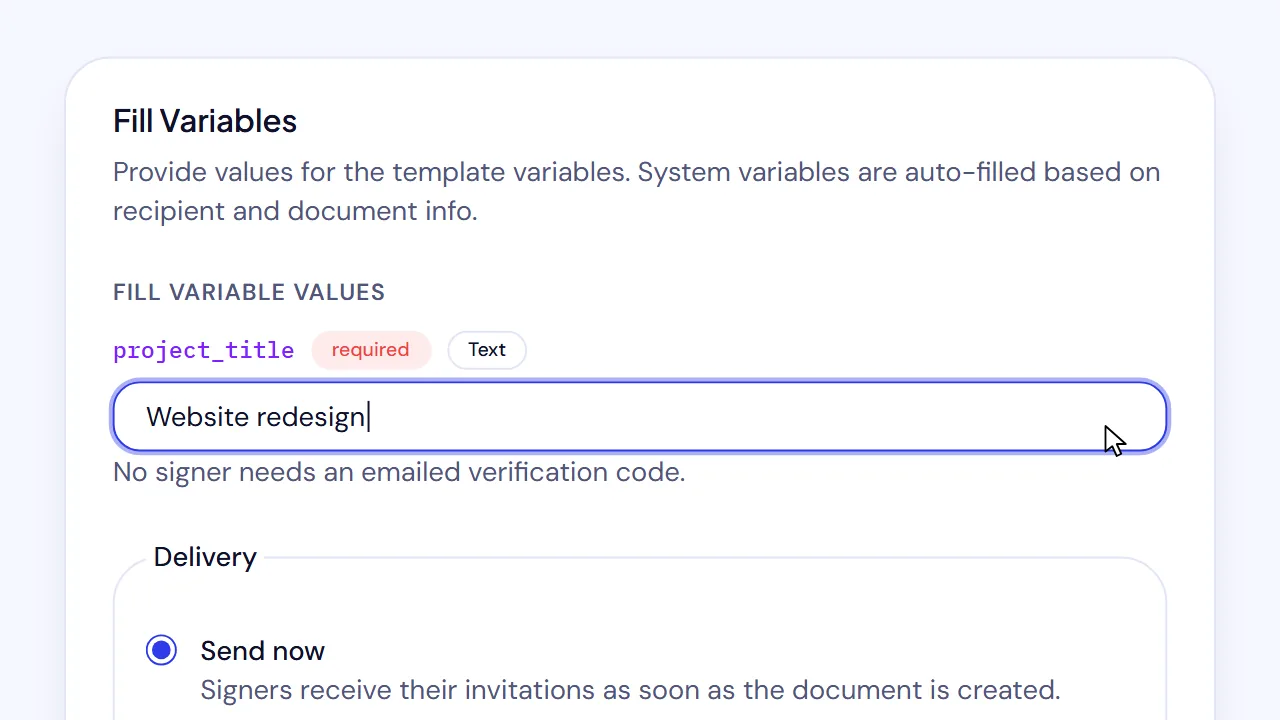
If two roles are present, confirm that each maps to the intended person. Choose the signing order for the request and inspect the recipient language. The language of the interface does not translate the PDF’s text.
Open the signing experience as the sample recipient and check the whole document. After completion, inspect the resulting PDF. A test request can use your document allowance, so include it in your usage planning.
A checklist for every reuse
- The selected template is the intended version.
- The source has no old client details or signatures.
- Every changing value is current, including dates and currency.
- Every required role has the correct recipient.
- Each field belongs to the right role and is readable.
- Signing order and recipient language match the request.
- The rendered document contains the complete agreed terms.
- The request title identifies this client and project.
For a one-off request, continue with how to request an electronic signature on a PDF. For independent copies from a recipient list, use the CSV guide.
When a template is the wrong shortcut
Create or revise the source first when a project changes the deliverables, legal terms, page layout, or commercial structure. Field reuse cannot make a mismatched agreement suitable.
Keep completed agreements with their own audit records. Updating a reusable template is preparation for future requests; do not treat it as an amendment to something already signed.
Create a free SignQuick account and start with one clean, recurring document. Confirm the full sample before making it your standard workflow.Product workflow and sources reviewed October 12, 2026. Template setup does not determine whether the underlying agreement is appropriate or enforceable.
Frequently asked questions
What does a reusable e-signature template save?
It saves a source document and reusable signing configuration, such as field locations and signer roles. A new request still needs the correct recipients, current details, and final review.
Will a variable replace text already printed inside my PDF?
Do not assume that. SignQuick template variables resolve in supported field content and placeholders; they do not search and replace arbitrary text embedded in the uploaded PDF.
Can I reuse a completed signed PDF as a blank template?
Use an unsigned source instead. A completed PDF contains someone else's entries or signatures and belongs with its original signing record.
Can I change the underlying PDF in an existing SignQuick template?
The current template edit flow does not replace the underlying file. Prepare a new template from the revised PDF, recheck its fields, and clearly identify which template should be used.
Are custom variables included on SignQuick Free?
Free supports system variables but no custom variables. Pro supports up to ten custom variables and Team has no configured custom-variable count cap. Check current plan details before designing a workflow around them.
