Sending documents
Send a document from a template
Start a new document from a template, add a person for each signer role and send it.
In SignQuick, open a template, select Use this version, add one recipient per role, fill any variables and send.
Who can use this feature?
- Plans
- All plans. Each document you send counts toward your plan's monthly document limit.
- Who can do it
- Owners and Admins can always send. Members can too, unless Who can send documents is set to Only owners, admins and members granted Send documents.
- Before you start
- A template you can see: a shared template, or a personal template you created.
Start from the template
- Step 1: In the sidebar, select Templates.
- Step 2: Select the template's name.
- Step 3: In Versions and publishing, select Use this version.
- Step 4: Check Document Title.
- Step 5: Select Continue.
Result: Add Recipients opens. It shows how many signers the template expects, for example Template expects 2 signers.
Add the signers and send
SignQuick assigns the template's roles in order, so the first recipient gets the first role's fields.
- Step 1: For the template's first role, enter the signer's Name and Email.
- Step 2: For each other role, select Add Another Recipient.
- Step 3: Enter that signer's details.
- Step 4: Select Continue.
- Step 5: On Add Signature Fields, review the fields placed for each signer.
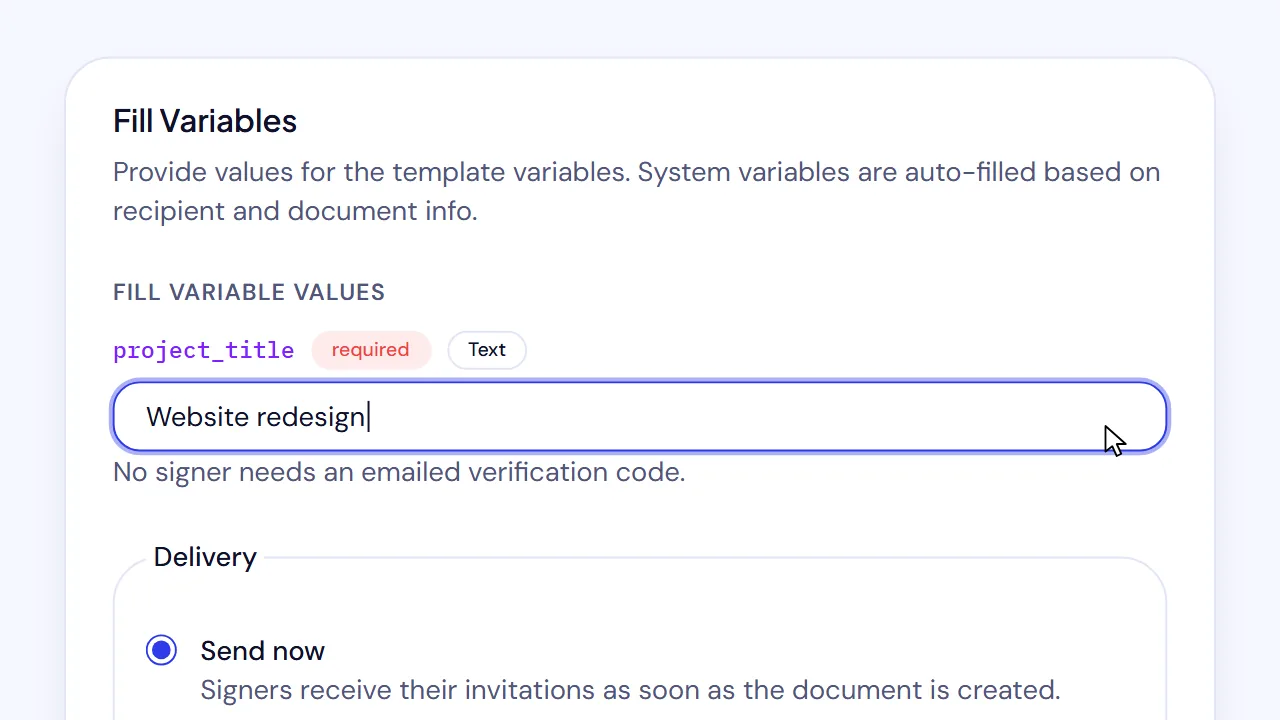
- Step 6: If the template has variables, select Continue to Variables.
- Step 7: In Fill Variables, enter the required values.
- Step 8: Select Send for Signature.
Result: SignQuick shows Document sent for signature! and opens the document's page.
Common questions
Why can't I continue from Add Recipients?
SignQuick shows Add a recipient for every template role before continuing when there are fewer recipients than roles. Add a recipient for each role the template expects, then select Continue again.
Why don't I see Use this version?
If the page shows This template is unavailable for new agreements, the template was unpublished or its version was withdrawn. Someone who can publish the template can publish it again from Versions and publishing.