Getting started
Send a document for signature
Upload a PDF, add the people who sign and send it for signature.
In SignQuick, upload a PDF from New Document, add each signer's name and email, check their signature fields and select Send for Signature.
Who can use this feature?
- Plans
- All plans. Your plan sets how many documents you can send each month.
- Who can do it
- Owners and Admins can always send. Members can too, unless Who can send documents is set to Only owners, admins and members granted Send documents.
Upload the PDF
- Step 1: In the sidebar, select New Document.
- Step 2: On Upload PDF, choose a PDF of up to 10 MB.
- Step 3: Check Document Title; SignQuick fills it in from the file name.
- Step 4: Select Continue.
Result: Add Recipients opens.
 View full-size image
Add the signers
- Step 1: Enter the signer's Name and Email, or type part of a name and choose a match in Saved contacts.
- Step 2: Choose their Language for the signing emails and signing page.
- Step 3: To add another signer, select Add Another Recipient.
- Step 4: Select Continue.
Result: Add Signature Fields opens. SignQuick has already placed a signature field and a date field for the first signer on the last page.
Place fields and send
- Step 1: Drag the placed fields to where the first signer signs.
- Step 2: For each other signer, choose them in Assign to.
- Step 3: Place a Signature field for that signer.
- Step 4: In Fields Summary, check that no signer shows Needs signature.
- Step 5: In Delivery, check that Send now is selected.
- Step 6: Select Send for Signature.
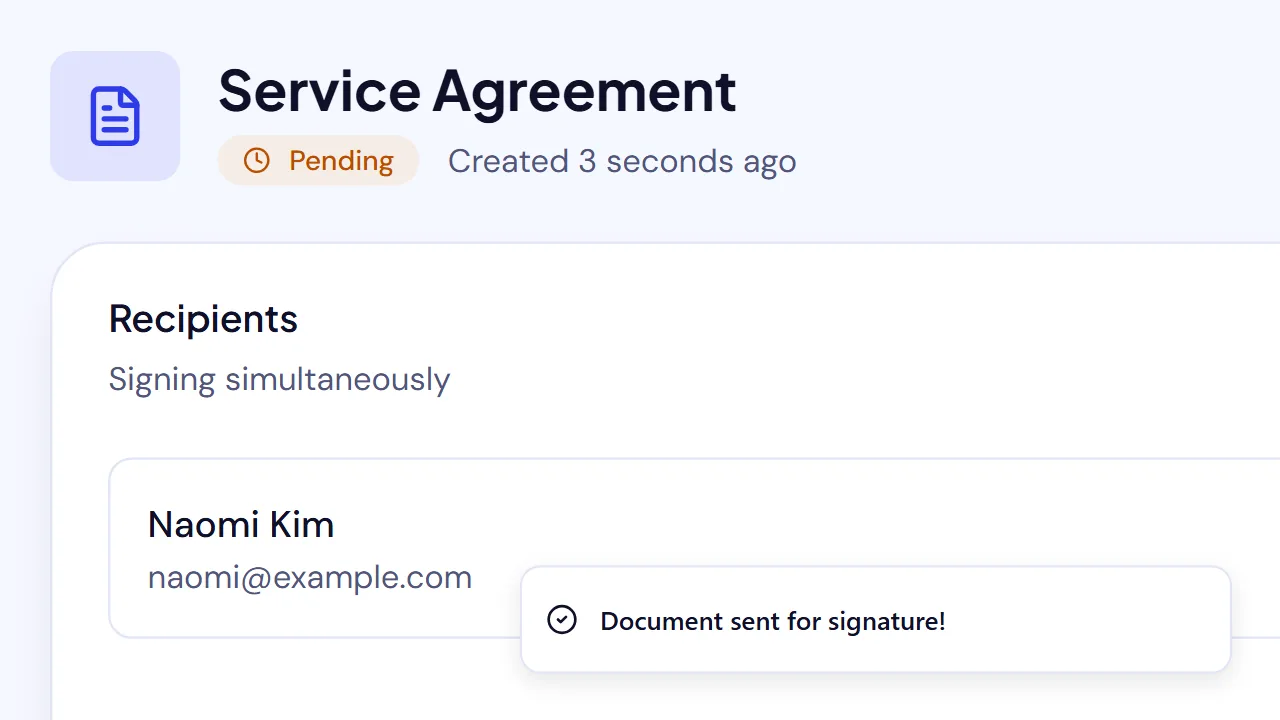
Result: SignQuick shows Document sent for signature! and opens the document's page, where each signer shows Pending.
Common questions
How do I send a copy to someone who doesn't sign?
On Add Recipients, select Add CC recipients (view-only) and enter their email. CC recipients receive a copy of the signed document but don't sign.
What if SignQuick says email delivery could not be confirmed?
When you see Document created but email delivery could not be confirmed, the document exists. SignQuick couldn't confirm that the invitations went out. Check each signer on the document's page before you send anything again.