Sending documents
Set the signing order
Choose whether everyone signs at once or in stages, one stage after another.
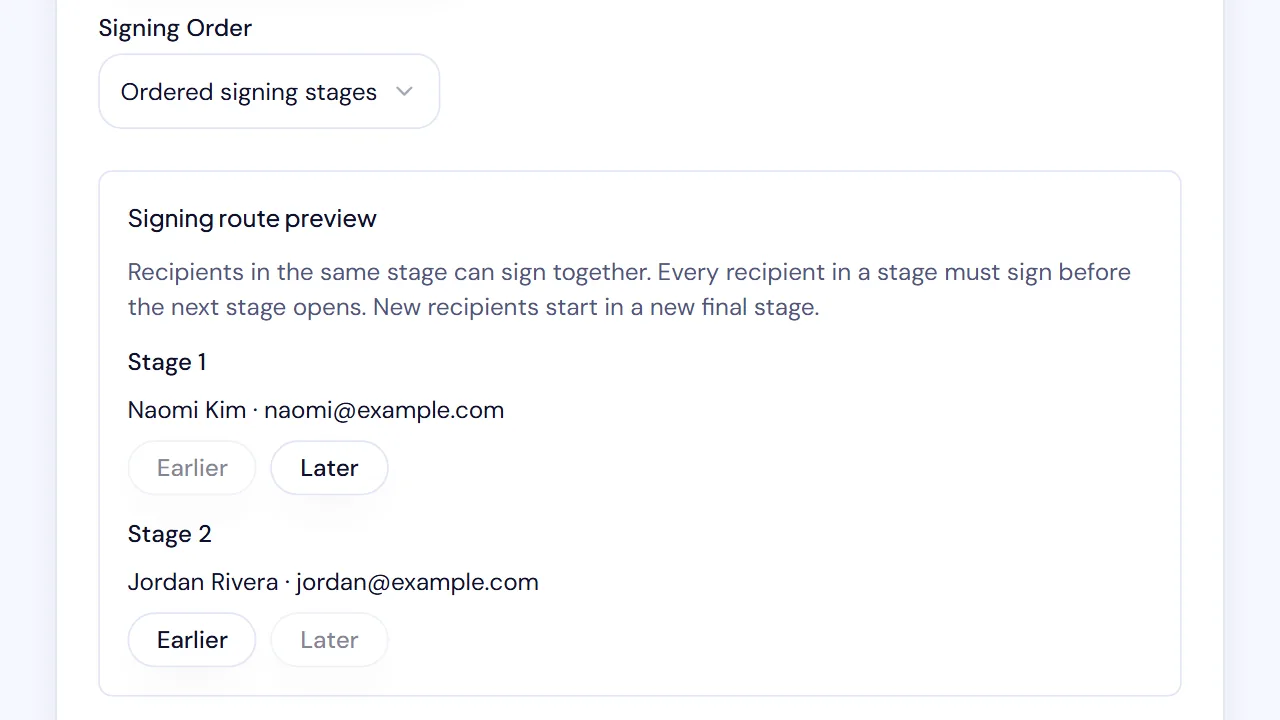
In SignQuick, choose Ordered signing stages in Signing Order so later stages wait until everyone in earlier stages has signed.
Who can use this feature?
- Before you start
- At least two recipients on Add Recipients. Signing Order appears only then.
Choose the signing stages
Signers in the same stage can sign together, but the next stage opens only after all of them sign. New recipients start in a new final stage. The default, Everyone signs at the same time, lets everyone sign at once.
- Step 1: On Add Recipients, add at least two signers with Add Another Recipient.
- Step 2: In Signing Order, choose Ordered signing stages.
- Step 3: In each signer's stage list (Signing stage for and their name), choose their stage or New final stage.
- Step 4: To move a whole stage, select Earlier or Later in Signing route preview.
- Step 5: In Signing route preview, check that each signer appears once, in the right stage.
- Step 6: Select Continue.
Result: Add Signature Fields opens. When you send, SignQuick invites only the first stage. Each later stage gets its invitations after the stage before it signs.
Common questions
What does a signer see if they open their link before their turn?
They see Waiting for Others and a message that they'll get an email when it's their turn. They can sign once everyone in the earlier stages has signed.