Sending documents
Assign fields to each signer
Choose who each field belongs to and make sure every signer has a signature field.
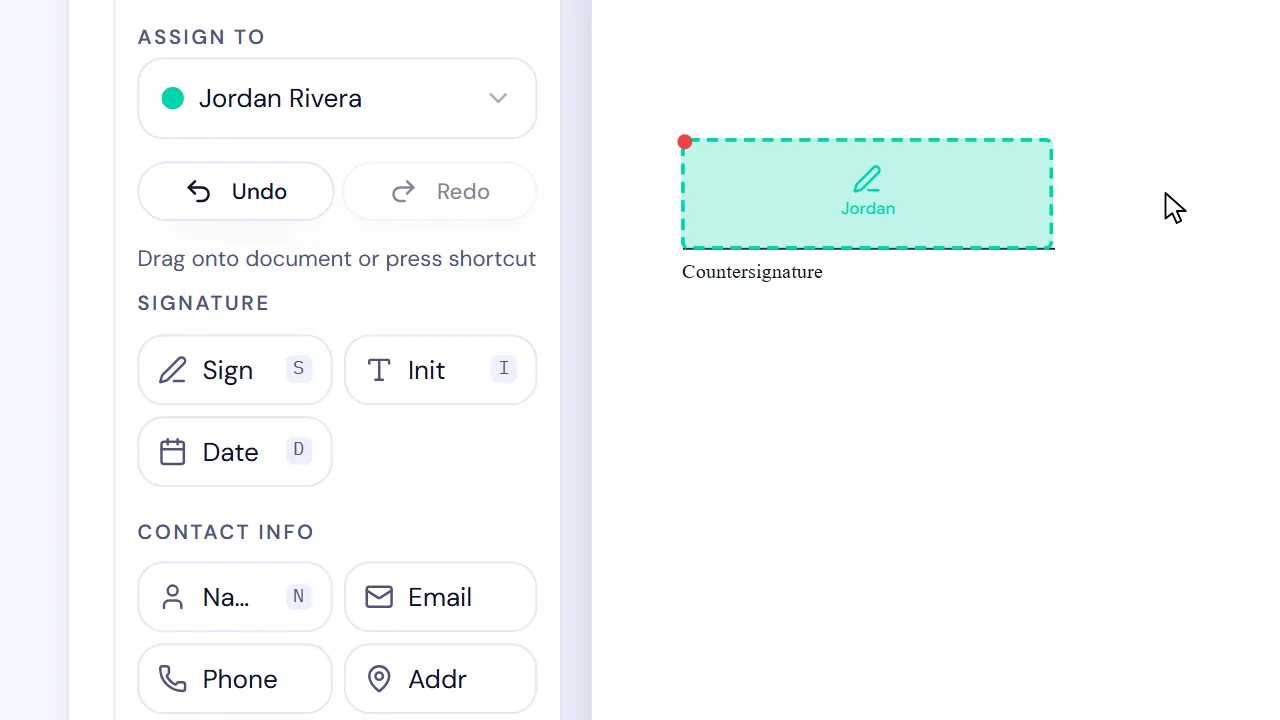
In SignQuick, choose a signer in Assign to before placing fields, and send once the Fields Summary shows no Needs signature.
Assign and place fields
A new field belongs to the signer chosen in Assign to when you place it. If you started from a PDF or quote, the first signer already has a signature field and a date field.
- Step 1: On Add Signature Fields, choose a signer in Assign to (on a phone, Assign fields to:).
- Step 2: Place a Signature field on the page where that signer signs.
- Step 3: Add any other fields that signer completes.
- Step 4: Repeat these steps for each other signer.
- Step 5: In Fields Summary, check each signer's field count.
Result: When no signer shows Needs signature, Send for Signature is available.
Common questions
Why is Send for Signature unavailable?
At least one signer has no signature field yet. The page names them in a message that starts with Please add a signature field for. Choose that signer in Assign to and place a Signature field.
Can SignQuick find fields in my PDF?
Yes, when the PDF has its own form fields or text markers. In Find fields in this PDF, select Find fields and choose the suggestions you want. Assign each one to a recipient, then add the selected fields. For scanned pages, place fields manually.