Sending documents
Prepare a PDF for signing
Upload, combine and review pages before you place fields.
In SignQuick, select Prepare pages after uploading a PDF to combine files, reorder, rotate or remove pages, then select Apply PDF.
Combine and arrange pages
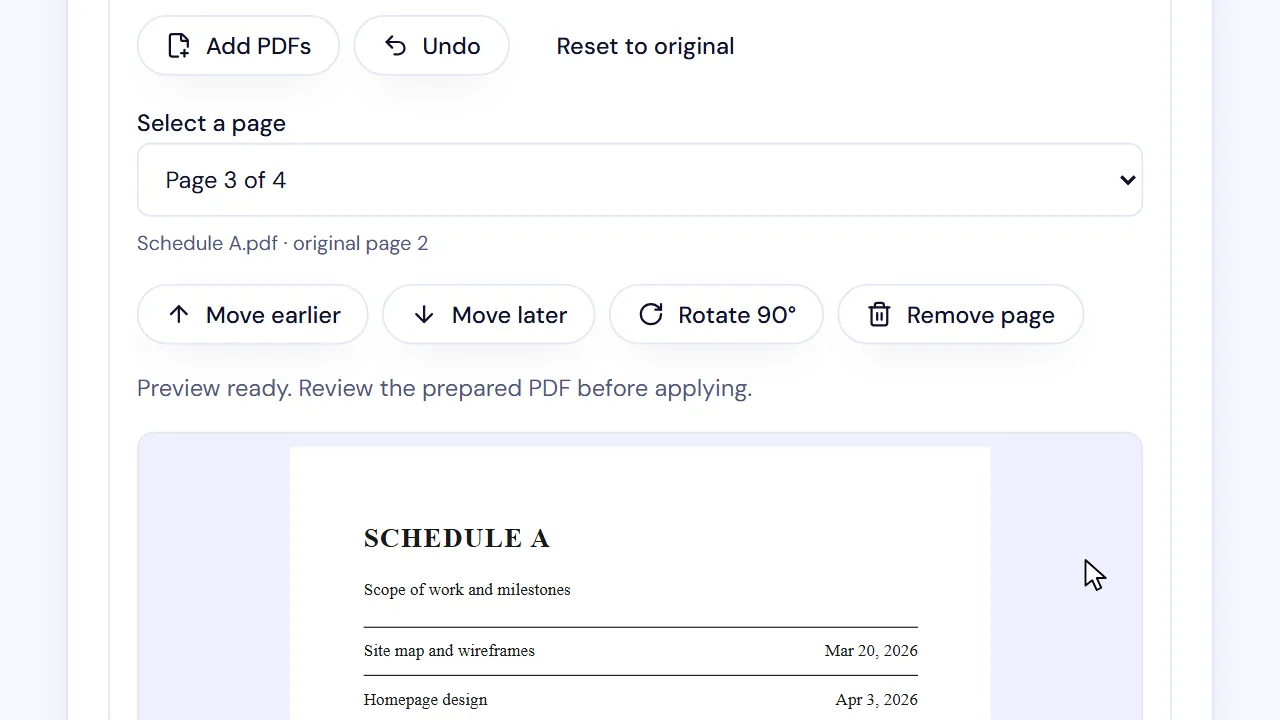
You can combine up to 10 PDFs, with up to 200 pages and 10 MB in total. For the selected page, SignQuick shows its source file and original page number. Undo reverses the last change, and Reset to original goes back to the uploaded PDF.
- Step 1: On the Document step, upload a PDF or create one with Build quote.
- Step 2: In Prepare PDF (optional), select Prepare pages.
- Step 3: To combine files, select Add PDFs.
- Step 4: Choose the PDFs to add.
- Step 5: In Select a page, choose the page to change.
- Step 6: Select Move earlier, Move later, Rotate 90° or Remove page.
- Step 7: Wait for Preview ready.
- Step 8: Select Apply PDF.
Result: The editor closes, the section shows Changes applied, and the file name ends in -prepared.
Turn images into PDF pages
You can import up to 10 images and 10 MB combined. Each image can be up to 10 megapixels, with 24 megapixels in total. SignQuick converts the images on your device.
- Step 1: On the Document step, select Import images.
- Step 2: Select Choose images.
- Step 3: Pick PNG or JPEG files.
- Step 4: In Page to review, view every page and check its orientation.
- Step 5: Select Apply reviewed PDF.
Result: SignQuick shows The reviewed PDF is ready. You can then prepare its pages like any other PDF.
Common questions
Why can't I prepare the pages of my PDF?
SignQuick can't prepare a password-protected PDF. It also can't edit the pages of a PDF with forms, signatures, links or bookmarks, because those would be lost. Your uploaded file stays unchanged: select Keep uploaded PDF or Cancel to continue with it. If you need page changes, export a new PDF from the source application and upload that.