Signing documents
Sign a document sent to you
Open the invitation, pass any check the sender set, fill your fields and sign.
To sign a SignQuick request, open the invitation link in any browser, fill your fields and select Complete Signing; you need no account.
Open the document
- Step 1: Open the signing link in your invitation email on your phone or computer.
- Step 2: If the page asks for an Access Code, enter the code the sender gave you.
- Step 3: Select Verify to submit the access code.
- Step 4: If the page shows Verify it's you, select Email me a code.
- Step 5: Enter the code from that email in 6-digit code.
- Step 6: Select Verify and continue.
- Step 7: Read the consent notice and select I Agree to use electronic records and signatures.
- Step 8: If your browser asks to share your location, allow or block it; you can sign either way.
Result: The document opens with your fields highlighted, and Signing as shows your name.
Fill your fields and sign
- Step 1: Select each highlighted field and fill it in.
- Step 2: For a signature or initials field, use Draw or Type.
- Step 3: Select Apply Signature or Apply Initials.
- Step 4: For an Attach a file field, select Choose file.
- Step 5: Upload the file the sender asked for.
- Step 6: When your required fields are complete, select the checkbox that confirms your intent to sign.
- Step 7: Select Complete Signing.
Result: Signature Complete! appears. If everyone has signed and the PDF is ready, select Download Signed Document. If not, SignQuick emails it to you once everyone has signed.
 View full-size image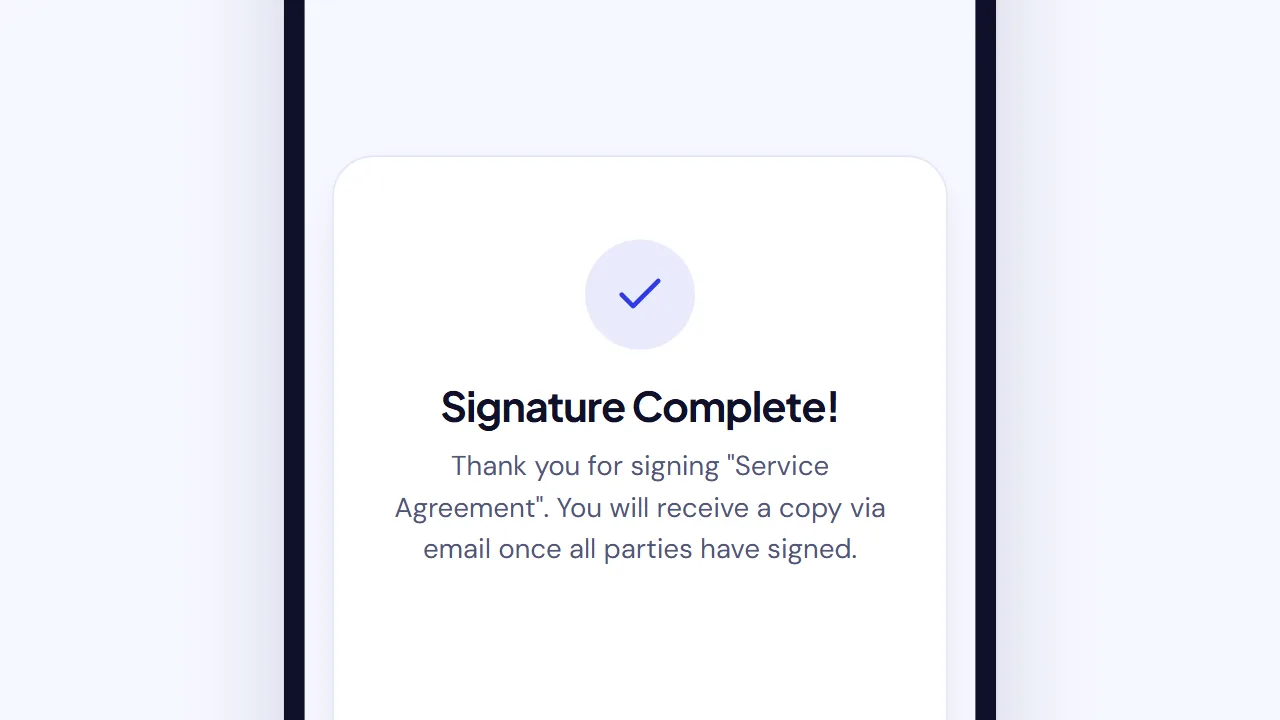
Common questions
What if I'm not the right person to sign?
Select I'm not the right person to sign this on the signing page or on Verify it's you. Optionally suggest a name and email, then select Send request. The sender is notified and can replace you. In-person signers and documents in a packet don't offer this option, so contact the sender directly.
What if I don't want to sign?
On the signing page, select Decline to sign, add an optional reason and confirm. The sender is notified, and you can't undo it. Decline to sign a document walks through each step.
How do I get a copy after everyone signs?
Use the private download link in your completion email. The link expires after 7 days. Your signing link also shows a download button while that access is valid. If the link no longer works, ask the sender for a new one.