Signing documents
Verify a signed PDF
Check that your copy of a signed PDF matches the file SignQuick recorded.
To check that a SignQuick PDF is unchanged, open the public verifier, enter the document ID and choose your copy of the signed PDF.
Compare your PDF with its record
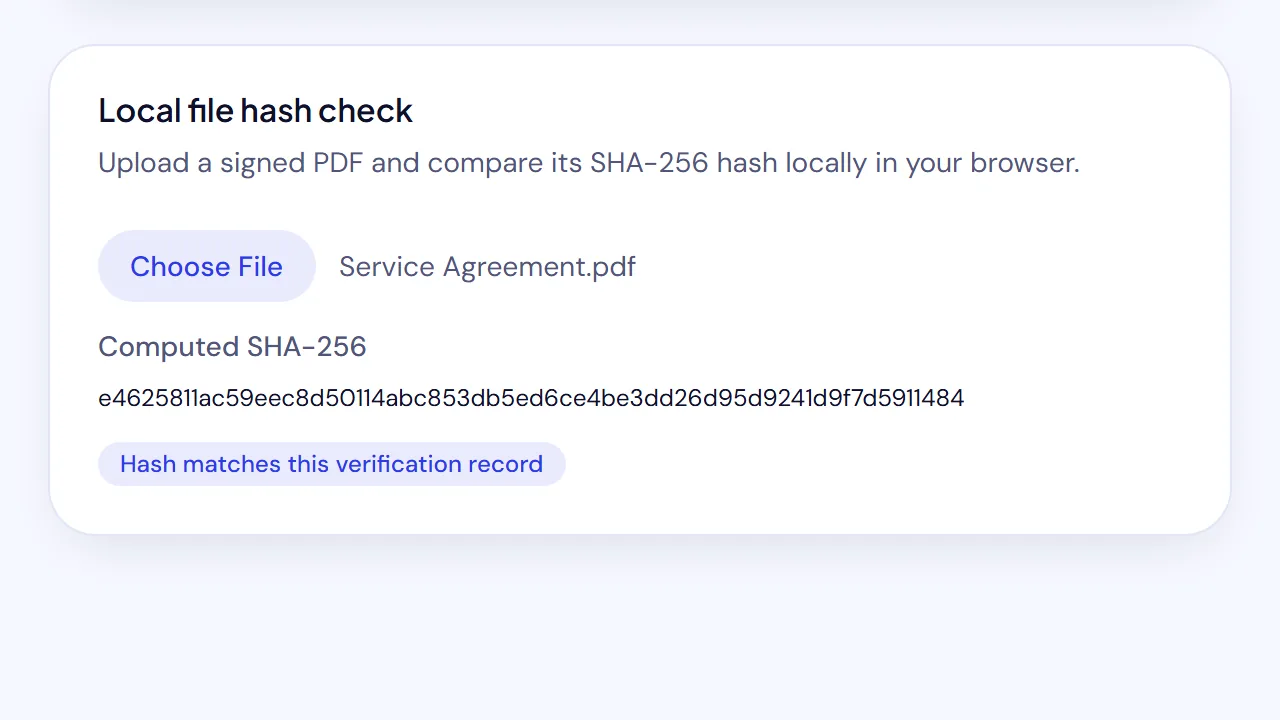
The verifier compares your file's SHA-256 hash, a fingerprint of the file, with the hash SignQuick recorded when signing finished. Your file stays on your device.
- Step 1: Open the public verifier at signquick.org/verify, or select Verifier in the app sidebar.
- Step 2: In Document ID or verification link, enter the document ID or paste the verification link.
- Step 3: Select Verify.
- Step 4: Under Local file hash check, choose your copy of the signed PDF.
Result: If your copy is unchanged, the page shows Hash matches this verification record. If not, it shows Hash does not match this verification record.
Common questions
Where do I find the document ID?
The document ID is in the signature-completion email and in the audit-trail PDF, as text and as a QR code. If you sent the document, it's also in the URL of its document page.
What if the hash doesn't match?
Your file isn't byte-for-byte the file SignQuick recorded. Ask the sender for the original completed PDF and check that copy.