Signing documents
Download a signed PDF and its audit trail
Save the signed PDF and the separate audit-trail PDF from a completed document.
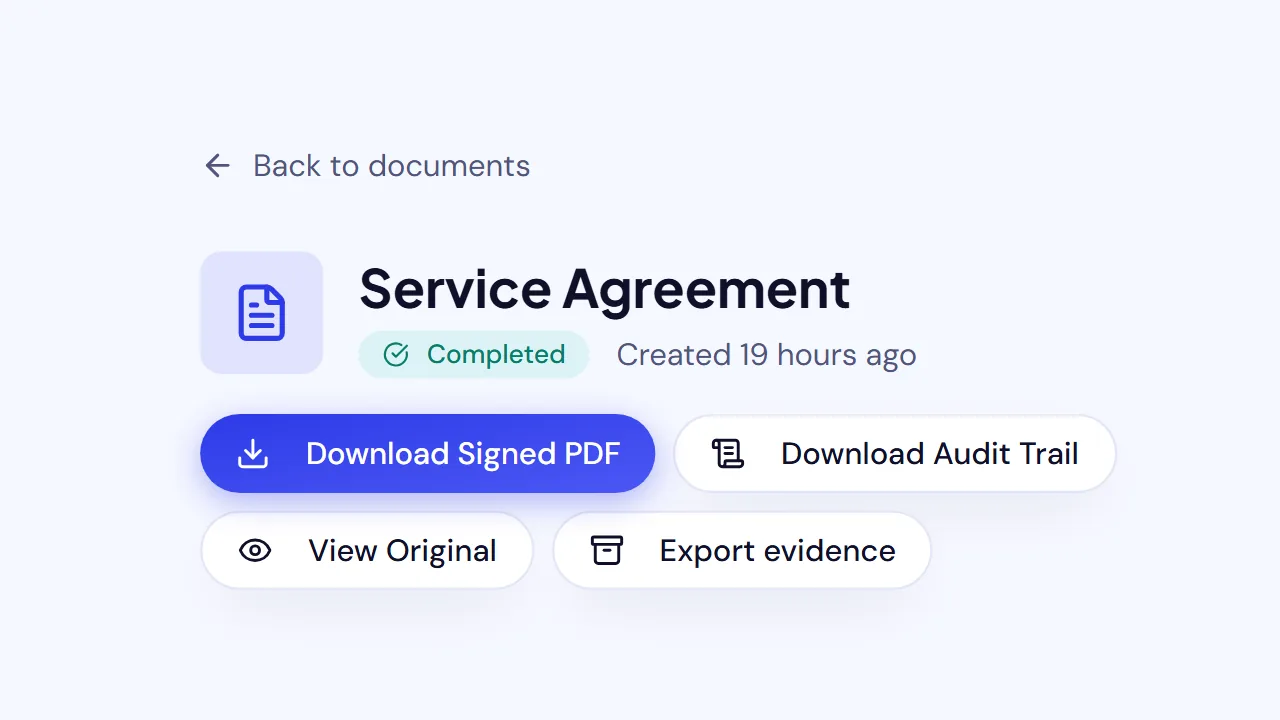
When a SignQuick document shows Completed, open it and select Download Signed PDF or Download Audit Trail to save each PDF.
Who can use this feature?
- Plans
- Every plan downloads both PDFs. On Pro and Team, the audit trail adds each signer's IP address, user agent, location and consent records.
- Who can do it
- Owners, Admins and Members who can open the document download both PDFs. Only the document's sender, Owners and Admins see Private completion download links.
Download the signed PDF and audit trail
- Step 1: In the sidebar, select Documents.
- Step 2: Open a document with the Completed status.
- Step 3: Select Download Signed PDF.
- Step 4: Select Download Audit Trail.
Result: The signed PDF opens in a new tab. It ends with a Certificate of Completion page. The audit-trail PDF downloads to your device.
Common questions
Why isn't the signed PDF ready yet?
The signed PDF exists only after every required signer has signed. On the document page, the Final document card shows whether the PDF is queued, being prepared or ready. Select Check status to update it. If preparation failed, an Owner or Admin can select Retry PDF preparation; nobody signs again.
How do I send a signer or CC recipient a new copy?
Under Private completion download links, select Generate new link for that person. Select Copy link and send it to them. The link expires after 7 days, and a new one revokes the previous link.
Where are the files that signers attached?
If the document asked for files, they're under Attachments on the same page. To get them in a ZIP file, create an export and select Signer attachments (ready files only).