Sending documents
Check who has signed a document
Follow each signer's status on the document's page and download the records once it's Completed.
In SignQuick, open the document from Documents to see who has signed, then download the signed PDF once it shows Completed.
Who can use this feature?
- Who can do it
- Owners and Admins see every document. Other members may see only the documents they created or are responsible for, depending on Document visibility.
Check each signer's status
- Step 1: In the sidebar, select Documents.
- Step 2: In Search titles, enter part of the document's title.
- Step 3: Select Apply filters.
- Step 4: Select the document's title.
- Step 5: In Recipients, check each signer's status: Pending, Viewed, Signed or Declined.
- Step 6: In Activity Timeline, check when each signer viewed and signed.
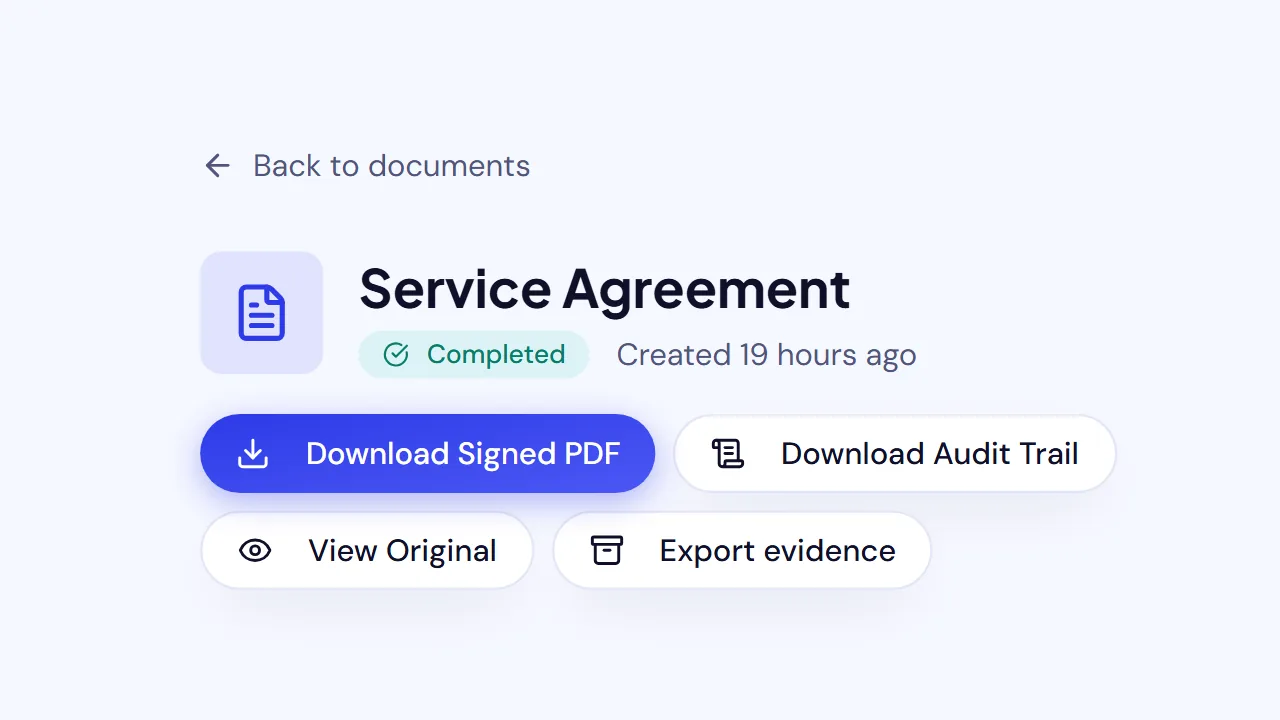
Result: When everyone has signed, the document shows Completed. You can then use Download Signed PDF and Download Audit Trail.
Change a request after sending
While the document is pending, you can send reminders or void it. You can also correct a signer's name or email, or hand their part to someone else. All of this happens on the document's page, without sending the document again.