Sending documents
Send a template to many people
Use Bulk Send to create a separate signature request for each recipient.
Send one SignQuick template to many people at once: Bulk Send creates a separate signature request for each recipient or CSV row.
Who can use this feature?
- Plans
- Pro and Team. A batch holds up to 50 recipients on Pro and 200 on Team. On Free, Bulk Send shows an upgrade prompt.
- Who can do it
- You need permission to send documents. Owners and Admins always have it, and members have it unless the Owner limits Who can send documents.
- Before you start
- A template with signature fields for one to three signer roles.
- Enough documents left in your monthly allowance: each recipient row uses one.
Send the batch
Each recipient, or each CSV row, gets its own document. A template with two or three signer roles accepts recipients only from CSV Upload.
- Step 1: In the sidebar, select Bulk Send, then select New Bulk Send.
- Step 2: Under Select a Template, choose the template, then select Continue.
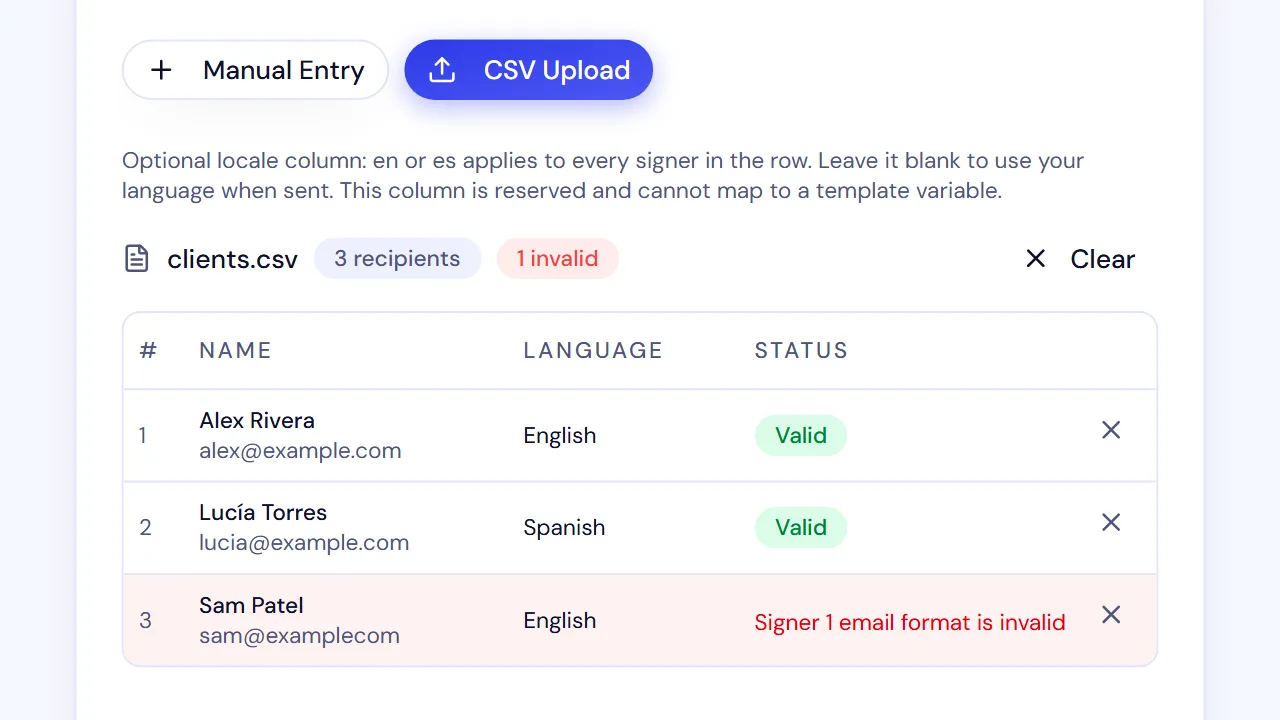
- Step 3: Add recipients with Manual Entry, using Add Recipient for each extra person, or choose CSV Upload and add your file.
- Step 4: Check the number of valid recipients, then select Continue.
- Step 5: If the template has variables, give each a value, or map a CSV column to it under Map CSV Columns to Variables. Then select Continue.
- Step 6: On Review & Send, optionally fill in Batch Name (optional) and Custom Message (optional).
- Step 7: If the template has two or three signer roles, choose the Signing order.
- Step 8: Optionally, pick a time in Schedule (optional).
- Step 9: Select Send to N Recipients, then select Send All in Confirm Bulk Send.
Result: SignQuick confirms the batch is queued and opens its page. There, Document creation counts rows as they are created.
Track the batch
- Step 1: In the sidebar, select Bulk Send.
- Step 2: Select the batch.
- Step 3: Under Document creation, check how many rows are queued, in progress, created or failed.
- Step 4: Under Invitation delivery, check how many invitations the email provider accepted and how many are queued, failed or need review.
- Step 5: If rows failed, select Replay N failed rows to try them again.
- Step 6: To stop rows that aren't created yet, select Cancel remaining rows.
- Step 7: Select Cancel rows to confirm.
- Step 8: To send a signer a new invitation, select Re-invite signer in their row.
- Step 9: Select Send invitation to confirm.
Result: Each created row has its own document. Select View in the Recipients table to open it.
Common questions
Why is a CSV row missing from my batch?
The preview leaves out rows with a missing name, an invalid email or an email repeated in the same row. To include a left-out row, fix it in your file and upload the file again. A row whose language isn't en, es or blank blocks Continue until you remove it or upload a corrected file. See "Bulk Send CSV file format" for the columns.
Does Bulk Send use my monthly documents?
Yes. Each recipient row creates one document from your plan's monthly allowance. If too few remain, SignQuick says how many are left before it creates anything.
Can I schedule a bulk send?
Yes. On Review & Send, pick a time in Schedule (optional), up to 30 days ahead in your local time. Leave it blank to start creating documents right away. The batch page shows when a scheduled batch starts.
Can I fix a signer's email after a bulk send?
You can correct a signer's name on a bulk-send document, but not the email, and Replace signer isn't available. Void that document and send a new one. See "Fix a signer's email or replace a signer" for both options.