Table of Contents
To send separate signature requests from a CSV, prepare a reusable template, create one spreadsheet row per document, map that row’s recipients and changing values, then review and send the batch. Each row should represent one agreement, not one signature box.
In SignQuick, a row can supply up to three signer roles. A batch of twenty rows can therefore create twenty independent agreements, each with its own participants and signing progress.
If several people need to sign one shared PDF, use a normal request with multiple recipients instead. Our PDF signature request guide covers that workflow.
Decide what one row represents
| Goal | Appropriate setup |
|---|---|
| Twenty clients each sign their own agreement | Twenty CSV rows |
| A client and provider sign each client’s separate agreement | One row per client, with two roles in each row |
| Three people sign the same agreement | One request with three recipients, not three independent CSV copies |
| Each client receives a materially different source document | Prepare the appropriate documents or templates before batching |
Bulk sending is a document workflow, not a marketing mailing list. Confirm the intended recipients and avoid adding unrelated contacts.
Dropbox’s bulk-send documentation also describes preparing a template and importing a CSV. Its format is provider-specific. Do not upload a file exported for another service without checking its headers and role structure.1. Prepare the template and check your plan
Follow our reusable-template guide to prepare an unsigned source PDF and place fields for the roles you need.
Use a template with Signer 1 fields for a one-person request. For a two-person agreement, assign the appropriate fields to Signer 1 and Signer 2. The roles supplied in every CSV row must match the selected template.
Current SignQuick limits are fifty rows per batch on Pro and two hundred on Team. Free does not include bulk sending. A batch must also fit the remaining document allowance where one applies; fifty rows per batch is not an extra fifty documents on top of the plan allowance.
For more on that distinction, see e-signature pricing and limits.
2. Start with a sample CSV
These downloadable files contain fictional names and example.com addresses. Replace them with verified recipients before sending.
The one-signer file contains:
| name | locale | project_name | |
|---|---|---|---|
| Alex Rivera | [email protected] | en | Website review |
| Lucía Torres | [email protected] | es | Revisión de catálogo |
The two-role file uses these columns:
| Column | Purpose |
|---|---|
| signer_1_name | First signer’s name |
| signer_1_email | First signer’s email |
| signer_2_name | Second signer’s name |
| signer_2_email | Second signer’s email |
| locale | Language for recipients in this row: en or es |
| project_name | Example custom value to map to a template variable |
For a third required role, add signer_3_name and signer_3_email. Do not skip from role one to role three. Each role in a row needs a different email address.
Keep the headers exactly as shown, even if your spreadsheet interface is in Spanish. Names and project values can contain accents.3. Export a file the importer can read
Save as a comma-separated UTF-8 CSV, not an Excel workbook renamed with a .csv extension. Use one header row and one physical line for each document. Remove blank rows and confirm that each row has the expected columns.
If your spreadsheet uses semicolons by default, select a comma-separated export. Enclose a value containing a comma in double quotes. A quote inside a quoted value is represented by two quotes. RFC 4180 documents those common CSV conventions.
The current SignQuick importer processes the file line by line. Keep embedded line breaks out of cells, even though broader CSV conventions can represent them. Put a brief single-line project reference in the CSV and keep longer text in the document.
Check the exported file itself before uploading; a spreadsheet preview can conceal the delimiter or encoding used on export.
4. Upload and inspect every row
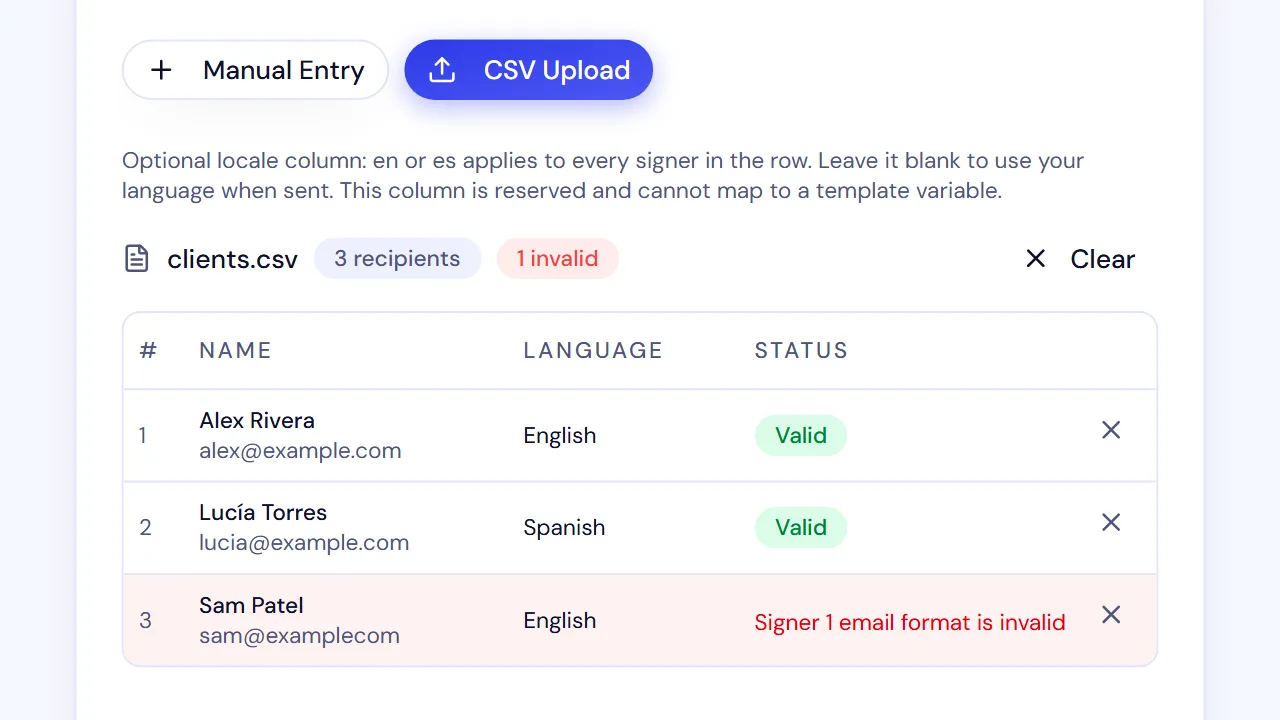
Open Bulk Send, start a new batch, choose the intended template, and switch to CSV Upload. Upload the file and inspect the recipient preview.
Check names, email addresses, role count, and language. Do not rely on an email-format check to prove that the address belongs to the intended person.
Invalid name or email rows are excluded from the valid-recipient list. An invalid language value or duplicate locale header blocks continuing. Fix the source and upload it again so the final count matches the people you intended to include.
Do not accept a smaller valid-row count just because the button lets you continue. Compare the intended document count with the preview.
5. Map changing values and choose language
If your template defines project_name, map the CSV column of that name to the template variable in the variables step. A column does not personalize the document merely because it exists.
Use shared values only for details that truly are the same across the batch. A blank mapped cell can leave a shared or default value in effect, so inspect missing values carefully; do not use a default client name or fee.
Variables resolve in supported field content or placeholders. They do not search and replace arbitrary words in the PDF. Preview the output with a small authorized test before a large batch.
The optional locale column accepts en or es. Its setting applies to the recipients in that row; it is not a different language setting for each role. A blank cell uses the sender-language default captured for the batch. Values such as “Spanish” or “es-419” are not accepted CSV codes.
This controls the recipient experience, not the source PDF’s language. If clients need different document text, prepare suitable source templates and separate the batches.
6. Review, send, and reconcile the results
Give the batch a recognizable name, review its message and signing order, and check the final row count. Parallel signing lets eligible participants act without waiting for the preceding role; sequential signing follows the order.
Before confirming a large batch, run a small sample with addresses you control or authorized participants. Test the roles, language, variable output, and completed document. Test documents can consume allowance.
When you are ready, select Send to N Recipients on the Review & Send step (N counts only the valid rows), then confirm with Send All. The help center keeps a shorter checklist of the current Bulk Send steps.
After you confirm, open the batch page. Its Document creation card counts rows as queued, in progress, created, and failed. Separate these outcomes:
- The batch was accepted for processing.
- Individual documents were created.
- Invitations were queued or accepted by the email provider.
- Recipients completed their signing actions.
One of those does not establish the next. If the submission result is uncertain, use the previous-send recovery control and inspect the batch before starting over. Retrying by creating a new batch can produce duplicate requests.
Troubleshooting checklist
| Problem | What to inspect |
|---|---|
| Missing name/email columns | Exact headers and comma delimiter |
| Roles do not match | Selected template and every required role pair |
| Fewer valid rows than expected | Row errors, accidental removals, blank names, invalid addresses |
| Language error | A single locale header, with en, es, or blank values |
| Same value appears everywhere | CSV-to-variable mapping and shared defaults |
| Printed client name did not change | Text embedded in the source PDF rather than a supported variable field |
| Batch exceeds allowance | Both the batch maximum and remaining document usage |
| Submission is unconfirmed | Recovery controls and existing batch state before any new send |
Retain each completed PDF with its audit trail. The batch is a convenient overview; each agreement still needs its own identifiable record.
Create a SignQuick account to prepare your reusable source. Bulk sending requires Pro or Team; start with an appropriate plan and a small verified sample.Sources, importer behavior, and product limits reviewed October 12, 2026.
Frequently asked questions
Does bulk sending put everyone on the same document?
Not in SignQuick's CSV bulk workflow. Each valid submitted row creates a separate document with the signer roles supplied for that row. Multiple people who need to sign one shared agreement belong in one request instead.
What columns does a SignQuick CSV need?
For one signer, use name and email. For multiple roles, use signer_1_name, signer_1_email, signer_2_name, signer_2_email, and the corresponding third-role columns if required. The columns must match the selected template's roles.
Can I choose Spanish for some rows and English for others?
Yes. An optional locale column accepts en or es and applies the language to the recipients in that row. It does not translate the PDF text. Blank values use the sender-language default captured for the batch.
How many rows can I send in one batch?
The current SignQuick limits are 50 rows on Pro and 200 on Team. Free does not include bulk sending. Remaining document allowance and other request limits still apply.
What if a send result is uncertain?
Use the previous-send recovery controls and inspect the batch before creating another one. A queued batch is not proof that every invitation was delivered or that every document was signed.
Can CSV values replace all text in the source PDF?
No. Map columns to supported template variables used in field content or placeholders. The mapping does not rewrite arbitrary printed text in the source PDF.