
Table of Contents
How to Request an Electronic Signature on a PDF
To request an electronic signature on a PDF, upload the final PDF to an e-signature service, add the signer’s name and email, place and assign the required signature fields, review the request, and send the signing link. After the recipient signs, save the completed PDF and its signing record.
That process is different from adding your own signature to a file. A signature request prepares the document for someone else, tells that person where to act, and records the progress of the request.
Before you request the signature
Treat the uploaded PDF as the version you are asking someone to approve. Before sending it:
- Confirm that the names, dates, amounts, exhibits, and page order are correct.
- Remove comments, tracked changes, drafting notes, and unintended blank pages.
- Resolve any terms that are still under negotiation.
- Give the file a recognizable name, such as
acme-project-approval-2026-08-17.pdf. - Verify the signer’s email address and, where relevant, their authority to sign.
If the source document changes after you prepare the request, make a new PDF. Do not rely on an email saying “ignore page three” or ask someone to sign a file that no longer represents the agreement.
How to request an electronic signature on a PDF in 6 steps
1. Upload the final PDF
In SignQuick, open New Document, choose Upload PDF, and select the finished file. Add a clear document title so you and the recipient can identify the request later. The help center’s first-document guide lists the current steps from upload to send.
A scanned PDF can still be used if every page is legible and oriented correctly. You place fields on top of the document, so the text does not need to be selectable. Review faint scans, clipped margins, rotated pages, and missing attachments before continuing.
If you are starting from a Word document or Google Doc, finish the edits there and export a PDF first. Google’s current e-signature instructions similarly let eligible users begin with a Google Doc or a PDF stored in Drive; its official help page explains the supported workflow and account requirements.
2. Add the recipient or recipients
Enter the name and email address of every person who must complete the PDF. With SignQuick, you can also select English or Spanish for each recipient’s signing experience and messages.
For multiple signers, choose the correct order:
- Everyone signs at the same time means everyone can receive and sign the request at once.
- Ordered signing stages means each signer sits in Stage 1, Stage 2 and so on, and a later stage opens only after everyone in the earlier one has signed.
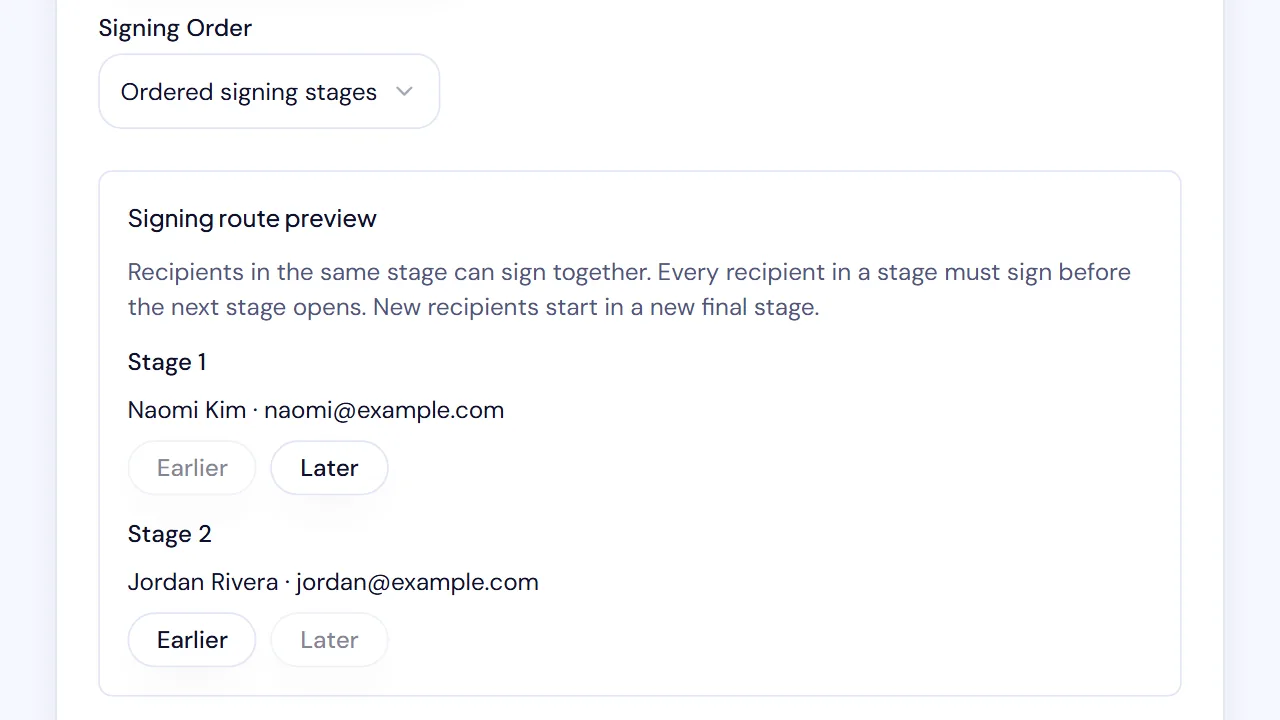
Ordered stages are useful when one approval must happen before another. Signing at the same time is usually faster when the signers can act independently.
Do not use a shared inbox merely because it is convenient if a specific person is expected to sign. Confirm the correct person and email before sending.
3. Place and assign the fields
Add a signature field wherever the recipient must sign. Then add any other required fields, such as initials, signing date, printed name, title, text, or a checkbox.
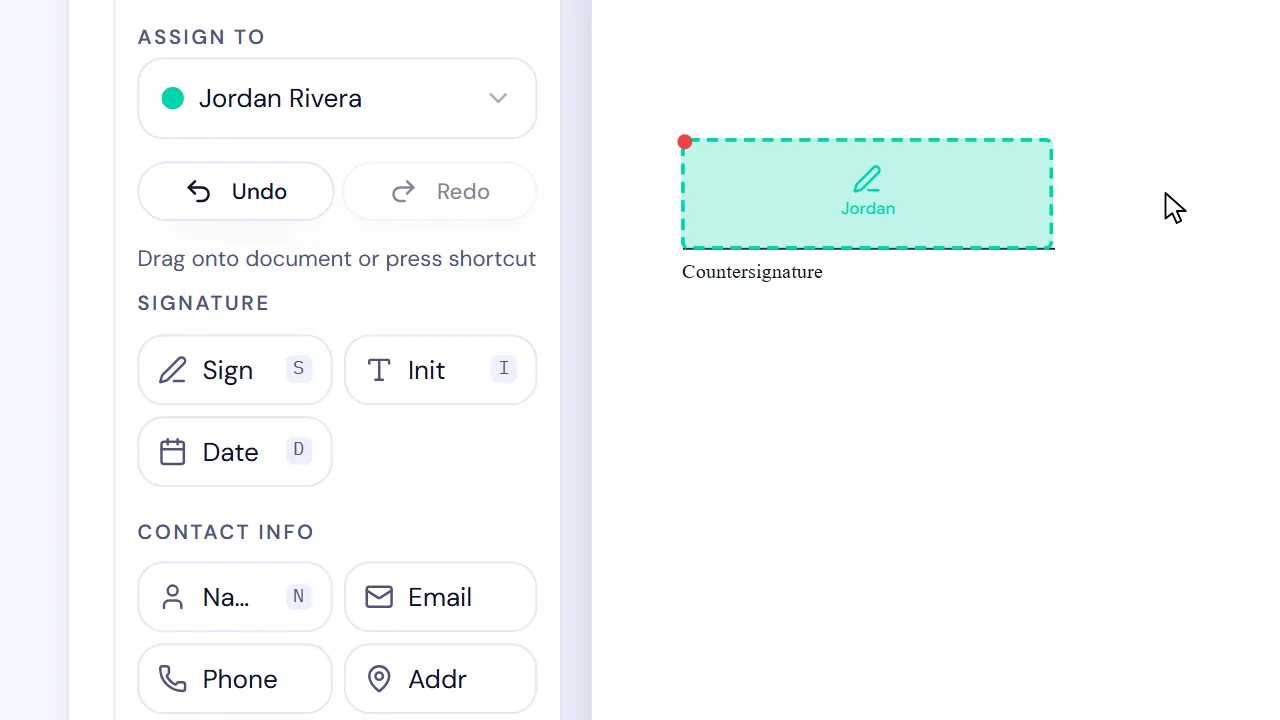
The crucial step is assignment. A field can appear in the correct location but still belong to the wrong recipient. In SignQuick, select the intended recipient before placing their fields, then review the field summary person by person.
Our practical rule from exercising the workflow is simple: never review fields only by page—review them by recipient. This catches the common case where two signatures look correctly positioned but both are assigned to the same person.
Make only the fields that truly require an answer mandatory. An unnecessary required field can prevent the recipient from completing the request.
4. Review the email and signing request
Use a descriptive title and a short message that explains what the PDF is and what the recipient should do. SignQuick shows a preview of the request subject for each recipient language before you send.
A useful message is:
Then complete one final check:
| Review item | What to confirm |
|---|---|
| It is the final, readable version and includes every referenced page or exhibit | |
| Recipients | Names, email addresses, language, and signing order are correct |
| Fields | Every required field exists and belongs to the right person |
| Message | The recipient can recognize the sender, document, and requested action |
| Retention | You know where the completed PDF and signing record will be stored |
Adobe’s current desktop workflow follows the same prepare-and-review pattern: add recipients, optionally set an order, place fields, review the agreement details, and send. See Adobe Acrobat’s official instructions.
5. Send the link and monitor the request
When you send through SignQuick, each signer receives a unique link to review and complete their assigned fields in a browser. They do not need a SignQuick account.
From the document record, monitor each recipient’s status. If someone does not receive the email, verify the address, ask them to check spam or junk folders, confirm whether they are waiting behind another signer in a sequential request, and send a reminder when appropriate.
Avoid sending repeated reminders before checking whether the recipient has a question about the PDF. A thoughtful follow-up is more useful than another automated nudge when the real blocker is an unresolved term.
6. Download and retain the completed record
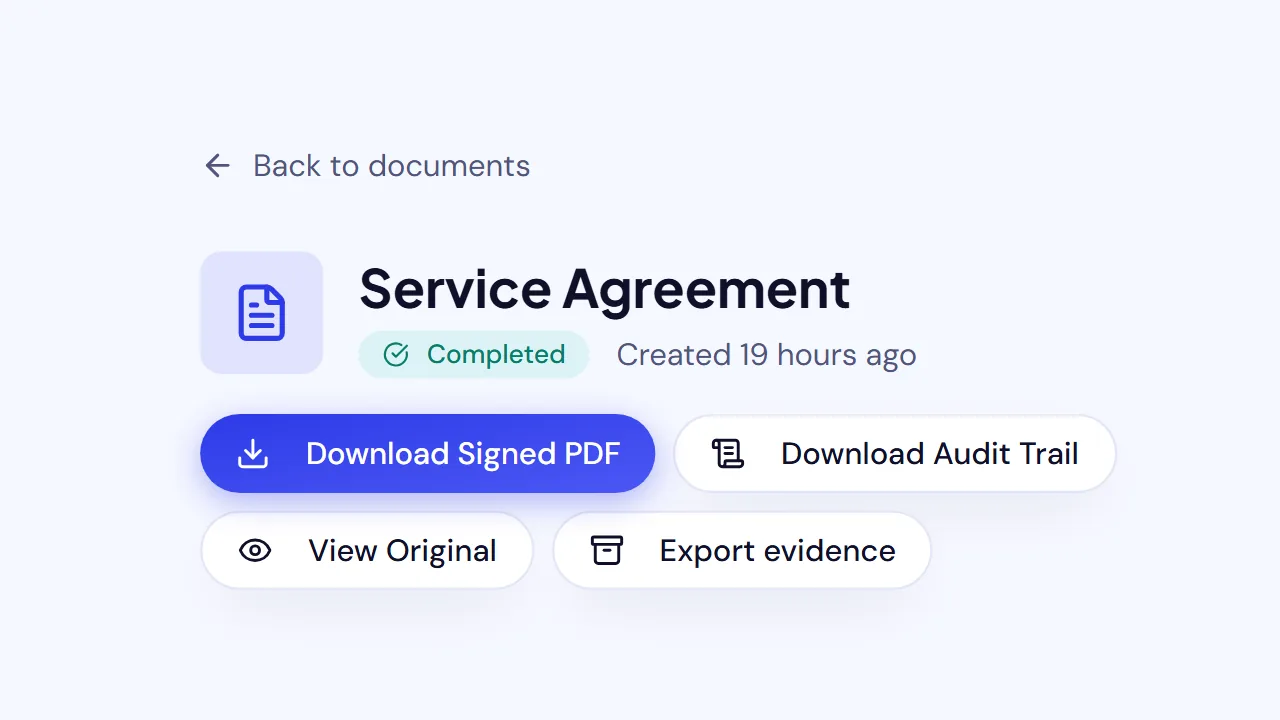
After every required signer finishes, download the completed PDF and its audit trail or signing record. Store both according to the business, legal, tax, and retention obligations that apply to the transaction.
In SignQuick, the audit trail records relevant document and signing events, timestamps, signer activity, document hashes, and available technical evidence. That record helps document the process; it is not a promise that every PDF will be enforceable under every law or set of facts.
For a deeper explanation of what this evidence can and cannot establish, read what makes an e-signature legally binding.
Requesting a signature is not the same as signing yourself
The two tasks often appear next to each other in PDF software, but they solve different problems:
| Task | Who signs? | Typical result |
|---|---|---|
| Fill and sign | You | You place your own signature or initials in the PDF |
| Request e-signatures | Someone else, or several people | The service sends unique signing links, assigns fields, and tracks completion |
If you only need to place your own signature on a file, you do not necessarily need to build a recipient workflow. If you need another person’s signature, use a request so the signer receives a clear action path and the completed document stays connected to the signing events.
What if the PDF needs a correction after sending?
Stop using the incorrect request. Correct the source file, export a new PDF, give it a version or date that distinguishes it from the first file, and send a replacement.
Do not modify a completed PDF and present it as the original signed document. Preserve the completed version; if the parties need a change afterward, use an amendment, change order, replacement agreement, or other appropriate document based on qualified advice.
Google Drive’s current e-signature documentation notes that its PDF is locked after a signature request starts. The product behavior varies by service, but the operational principle is sound: once signing begins, preserve the exact version presented to the signer.
Are electronic signatures on PDFs valid?
For transactions within the scope of U.S. federal law, 15 U.S.C. § 7001 generally says a signature, contract, or record may not be denied legal effect solely because it is electronic. The same chapter includes consent and retention requirements in some circumstances and specific exceptions.
That rule does not make every PDF enforceable. Intent, consent, attribution, authority, the document’s terms, the evidence retained, governing law, and document-specific formalities can all matter. Rules differ outside the United States. Do not use a general software guide as country-specific legal advice.
Send a harmless test request first
Before sending an important PDF, use a simple sample and an email address you control. Complete the recipient side on a phone as well as a computer. Check the email, field order, signing experience, completed PDF, and audit trail. That ten-minute rehearsal reveals more than repeatedly reviewing the sender screen.
Create a free SignQuick account and request a signature on a test PDF. For a shorter upload-to-send checklist, see how to send a document for e-signature. If the PDF is a client agreement, use the more detailed client contract signing guide.Research sources
- Adobe Acrobat: Send documents for e-signature on desktop
- Google Drive Help: Send signature requests and sign documents with eSignature
- 15 U.S.C. Chapter 96, Subchapter I — Electronic records and signatures in commerce
Sources and live search results checked August 17, 2026. This article provides general educational information, not legal advice.
Frequently asked questions
How do I request an electronic signature on a PDF?
Upload the final PDF to an e-signature service, add each signer by name and email, place and assign the required signature and other fields, review the request, and send it. The signer receives a link to review and complete the PDF; afterward, retain the completed file and signing record.
What is the difference between signing a PDF and requesting a signature?
Signing a PDF means adding your own signature. Requesting a signature means preparing the PDF for another person, assigning fields to that person, and sending a unique signing link so the service can track the request and completion events.
Can I request signatures from more than one person on the same PDF?
Yes. Add every required signer, assign each field to the correct person, and choose whether they should sign at the same time or in a specific order. Confirm field ownership before sending.
Does the recipient need a SignQuick account?
No. A SignQuick recipient opens the unique email link, reviews the PDF, completes the fields assigned to them, and signs in a browser without creating an account.
Can I change a PDF after sending it for signature?
Do not alter an active or completed signing version. If the terms or file are wrong, stop using that request, correct the source document, create a clearly identified new PDF, and send a replacement request.
Is an electronic signature on a PDF always legally enforceable?
No platform can guarantee that result for every document or situation. Applicable law, intent, consent, identity evidence, document type, retention, authority, and required formalities can matter. Seek qualified local advice for regulated, high-value, disputed, or cross-border transactions.