
Table of Contents
How to Send a Document for E-Signature in Under 60 Seconds
Sending a document for e-signature should be fast. Not "watch a 10-minute tutorial" fast — actually fast. Upload, place fields, send. Done.
This guide walks through the entire process step by step. Whether you're sending a contract to a client, an NDA to a partner, or an offer letter to a new hire, the workflow is the same.
If your specific goal is to prepare a finished PDF for another person, use the more detailed guide on how to request an electronic signature on a PDF. If you only need to add your own signature without printing, start with how to sign a PDF without printing.
Before You Start
You'll need:
- A PDF of the document you want signed
- The email address of the person (or people) who need to sign
- An e-signature account (SignQuick's free tier covers 3 documents a month)
That's it. No plugins, no software installation, no desktop app.
Step 1: Upload Your Document
Log in and click New Document. Drag your PDF into the upload area or browse your files. The file name becomes the document title (edit it if you like), then click Continue to add recipients. For the current version of each step, see the help center's guide to sending your first document.
Most e-signature tools support PDF files, which is the standard format for contracts and agreements. If your document is in Word or another format, export it as a PDF first.
Step 2: Add Recipients
Enter the name and email address of each person who needs to sign. If you're sending to multiple signers, each one gets their own color automatically so their fields are visually distinct.
Common recipient configurations:
- Single signer: You send, they sign. The simplest case.
- Multiple signers: A contract that requires two or more signatures (e.g., both parties to an agreement).
- CC recipients: People who need a copy of the signed document but don't need to sign themselves.
If you've sent to this person before and your platform stores contacts, their details auto-fill — saving a few more seconds.
Step 3: Place Signature Fields
This is where the document becomes interactive. Drag and drop fields onto the PDF where you need the signer to take action. SignQuick pre-places a signature field and a date field for the first recipient, so review or move them, then add fields for anyone else who signs.
Common field types:
- Signature — The primary signing field. Signers can draw or type their signature.
- Initials — For pages that require initialing.
- Date — Automatically fills with the signing date.
- Text — For typed responses (name, title, address).
- Checkbox — For acknowledgments or multiple-choice options.
Place each field exactly where it should appear on the document. Resize fields as needed to fit the layout.
A good e-signature tool gives you fine-grained control over field placement without requiring you to build a template from scratch every time. If you send similar documents frequently, save the field layout as a template for even faster future sends.
Step 4: Send
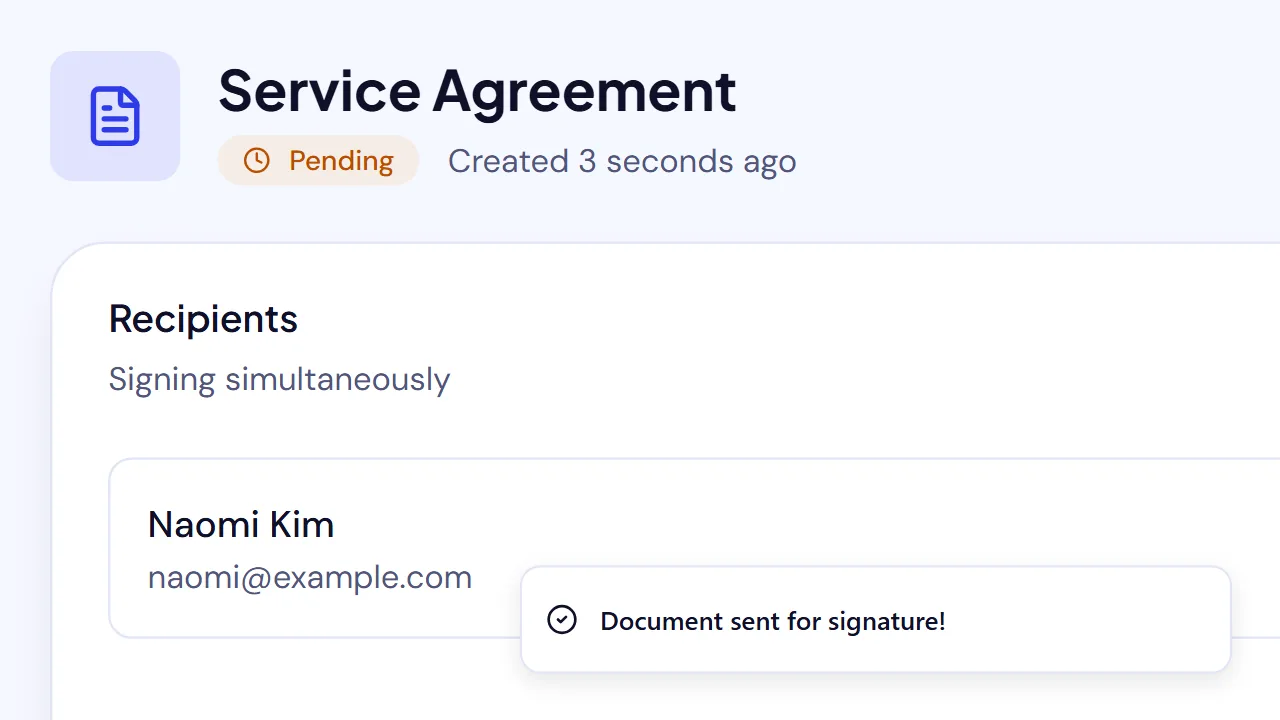
Click Send for Signature. That's it.
The recipient gets an email with a secure link to the document. They open it in their browser — no account required, no app to download — review the content, fill in their fields, and sign.
You receive an email once everyone has signed. The signed PDF and its audit trail are available to download from the document page.
What Happens After Signing
Once all recipients have signed:
- Everyone gets a copy. Each signer and CC recipient receives an email with a link to download the completed, signed PDF.
- The audit trail is finalized. A record of who signed and when, plus any signer-authentication evidence, is kept with the document and can be downloaded as an audit-trail PDF. On Pro and Team, that PDF also lists the signer's IP address.
- The document is locked. No further changes can be made. The signed version is the permanent record.
Tips for Faster Document Sending
Use Templates
If you send the same type of document regularly — say, a freelance contract or an NDA — save it as a template. Templates preserve the field layout so you only need to add recipient details and hit send.
Build Your Contact List
E-signature platforms with built-in contact management let you auto-fill recipient information. Over time, this eliminates the manual entry step entirely. SignQuick, for example, builds your contact database as you send documents — every recipient is automatically saved for future use.
Set Up Reminders
Not everyone signs immediately. Automatic reminders (a Pro and Team feature) nudge recipients without you having to send a follow-up email manually. Set a reminder interval (e.g., every 2 days) and let the system handle the rest.
Bulk Send
Need the same document signed by 50 people? Bulk send (also Pro and Team) lets you upload a recipient list (via CSV) and send individualized copies of a document to each person. This is invaluable for HR onboarding, policy updates, or any scenario involving multiple identical signatures.
Why Speed Matters
Every hour a document sits unsigned is an hour of risk. Deals can fall through, new hires can reconsider, clients can lose interest. The faster you get documents signed, the faster you close.
The barrier to adoption for e-signatures shouldn't be complexity. If it takes longer to figure out the tool than to fill out the document, something is wrong.