Sending documents
Send a document in your signer's language
Pick English, Spanish, French, German, Brazilian Portuguese or Italian for each signer's emails and signing page.
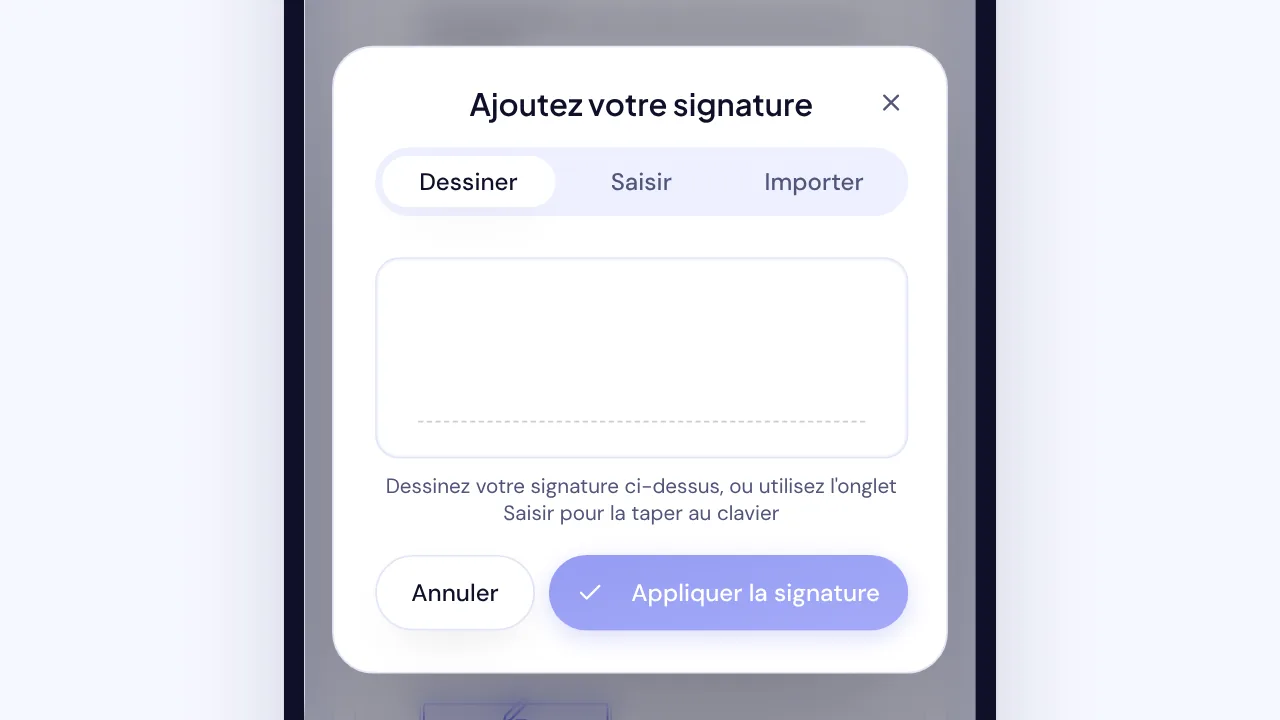
In SignQuick, choose each signer's Language when you add them, and their emails and signing page arrive in that language.
Choose a signer's language
Each signer can get their emails and signing page in English, Spanish (Español), French (Français), German (Deutsch), Brazilian Portuguese (Português (Brasil)) or Italian (Italiano). A new signer starts in the language of your account.
- Step 1: In the sidebar, select New Document.
- Step 2: Upload the PDF and select Continue.
- Step 3: In Add Recipients, enter the signer's Name and Email.
- Step 4: Open Language and choose the signer's language, such as Français.
- Step 5: To check the email subject in each language, select Preview email.
- Step 6: Select Continue, place the fields and select Send for Signature.
Result: The signer's invitation arrives in that language, and their signing page opens in it.
What the signer gets in their language
The language covers what SignQuick sends or shows the signer: the signature request and reminder emails, the verification code email, the signing page with its consent to sign electronically, the completion email, and the audit-trail PDF attached to it.
Your dashboard and the emails SignQuick sends you stay in English or Spanish, as set in your account settings.
Common questions
Can I change a signer's language after I send?
No. The language is saved with the request when you send it, so reminders and the signing page stay in that language. To use another language, void the request and send a new one.
Can my dashboard be in French, German, Portuguese or Italian?
No. The dashboard is in English or Spanish. The other languages are for signers.
How do I set the language for a bulk send?
Add a locale column to the CSV with en, es, fr, de, pt or it in each row. A blank cell uses your language.