Developers
Connect an AI assistant with MCP
Let Claude, Cursor or another MCP client search, draft and send SignQuick documents with an API key whose permissions you choose.
SignQuick's MCP server lets an AI assistant search, draft and send documents with a Team API key, limited to that key's permissions.
Who can use this feature?
- Plans
- Team.
- Who can do it
- Owners and Admins create the API key.
- Before you start
- An AI assistant that connects to remote MCP servers over HTTP.
Create a key for your assistant
The assistant can do only what its key's permissions allow, so give it a key of its own. Choose a test key to try it on sandbox documents that never send email.
- Step 1: In the sidebar, select Settings, the gear icon next to your name, then select API Keys.
- Step 2: Select Create Key and enter a Key Name, such as the assistant's name.
- Step 3: Under Key mode, choose Live key, or Test key to try it first.
- Step 4: Under Permissions, keep Read documents so it can search, and Create documents so it can draft. Clear Send documents if a person should always send from SignQuick.
- Step 5: Select Create Key, then copy the key from the API Key Created — Copy it now! banner.
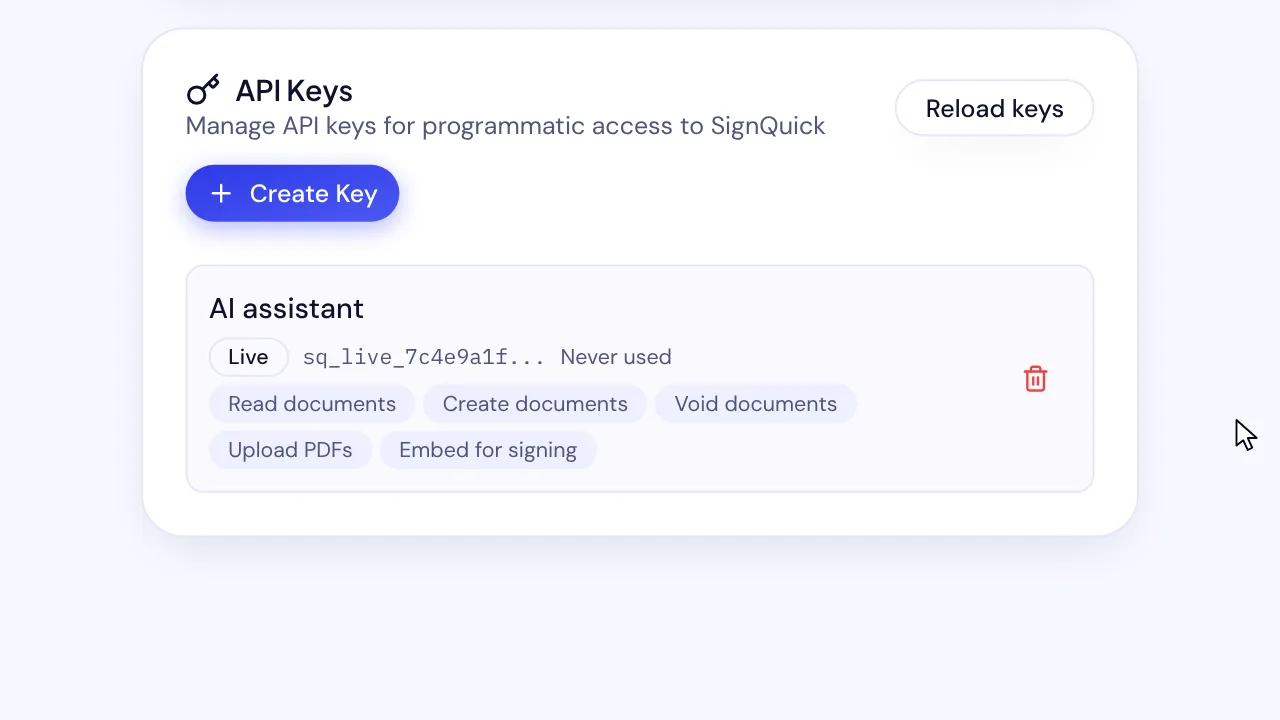
Result: The key's row lists the permissions the assistant will have.
Add SignQuick to your assistant
SignQuick's MCP server is at https://signquick.org/api/v1/mcp and uses the HTTP transport. Your key goes in an Authorization header, written as Bearer, a space, and the key.
- Step 1: In your assistant's MCP settings, add a server of type http with the URL https://signquick.org/api/v1/mcp.
- Step 2: Add the header Authorization with the value Bearer followed by your key.
- Step 3: Ask the assistant to list your templates or find a document.
Result: The assistant answers with your SignQuick documents and templates.
What the assistant can do
With Read documents, the assistant can search documents, read a document and its signers, list and read templates, and find signers. With Create documents, it can create a draft from a template, which never emails anyone. With Send documents as well, it can send a draft after you approve a preview.
Each action runs the matching API request with the same key, so it has the same permission checks and rate limits.
Common questions
Can the assistant send a document without asking me?
No. Sending takes two steps: the assistant first shows a preview with the title, the message and who gets emailed, and sends only after you approve it. The approval expires after 10 minutes and stops working if the document changes.
How do I stop the assistant's access?
Revoke its key in API Keys. The assistant can't reach SignQuick again until you give it a new key.