Signing documents
Download and check a document proof
Save a completed document's PDF versions and signing records as a signed ZIP file, and check it on your computer.
On a completed SignQuick document's Proof and records tab, select Download document proof to save a signed ZIP you can check offline.
Who can use this feature?
- Who can do it
- Owners, Admins and Members who can open the document can download its proof.
- Before you start
- The document has the Completed status.
- Node.js on your computer, to check a proof.
Download the document proof
SignQuick keeps exact copies of a document's PDF versions, such as the PDF sent for signing and the completed PDF. The document proof is a ZIP file with those versions and the signing records, plus a manifest that SignQuick signs so anyone can check that no file changed.
- Step 1: In the sidebar, select Documents.
- Step 2: Open a document with the Completed status.
- Step 3: Select the Proof and records tab.
- Step 4: In the Verification card, select Download document proof.
Result: The button shows Preparing document proof…, then your browser downloads the ZIP file. Its name starts with signquick-proof-, followed by the document ID.
Check the proof on your computer
The ZIP file includes verify.mjs, a verifier that runs on your computer with Node.js and no internet connection. It checks SignQuick's signature on the manifest, then checks every file against the SHA-256 hash the manifest lists. The verifier only trusts keys from a file outside the proof's folder, so save SignQuick's public keys separately.
- Step 1: Extract the ZIP file into a folder named proof.
- Step 2: Open a terminal in the folder that contains the proof folder.
- Step 3: Run curl -o signquick-keys.json https://signquick.org/api/public/document-proof/keys to save SignQuick's public keys next to the proof folder.
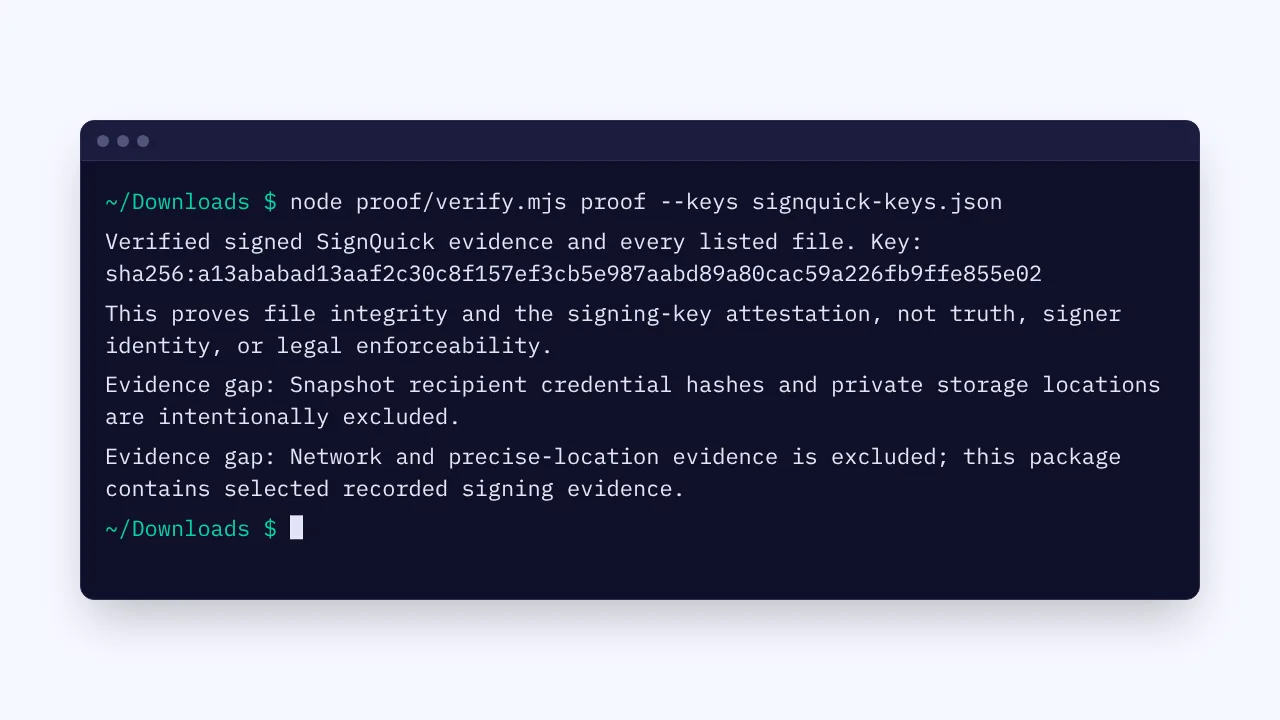
- Step 4: Run node proof/verify.mjs proof --keys signquick-keys.json.
Result: If every file matches, the verifier prints "Verified signed SignQuick evidence and every listed file" and the key it used, then an "Evidence gap" line for each record the proof doesn't contain. Otherwise, it prints "Verification failed".
Common questions
What's in the ZIP file?
Each preserved PDF version, the signing records in evidence.json and, when the document has one, the timestamp token. It also has proof-manifest.json, which lists every file with its SHA-256 hash, the manifest's signature, a copy of SignQuick's public keys, verify.mjs and README.txt.
What isn't in the proof?
The proof leaves out signers' IP addresses and precise locations, the signing flow and approval history, and files that signers attached. The manifest lists each gap, including records that an older document doesn't have. Keep the audit-trail PDF with the proof for the full event timeline.
Why can't I download the proof?
If the card shows Document proof is temporarily unavailable. Your agreement is unchanged. Try again later., SignQuick can't prepare proofs right now, and your agreement isn't affected. If it shows We couldn't prepare your document proof. Try again from this page., wait a few minutes, then select Download document proof again.
Why does the verifier say Verification failed?
A file in the proof's folder changed, the key file is inside that folder, or the key file isn't SignQuick's list. Extract a fresh copy of the ZIP file, save the keys again outside the folder and run the check again.