Sending documents
Archive documents you're done with
Hide finished documents from your Documents list without deleting them, and bring them back with the Archive filter.
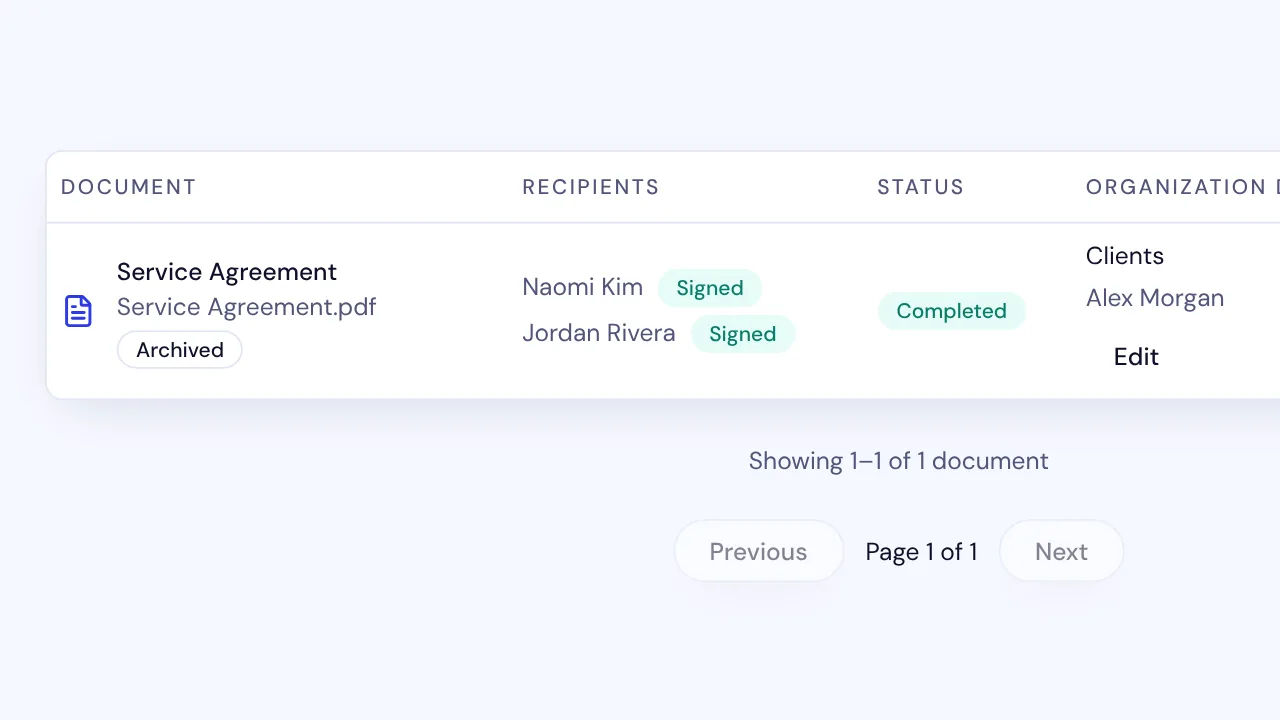
To tidy your SignQuick Documents list, archive a document from its Document actions menu; it keeps working, and the Archive filter brings it back.
Who can use this feature?
- Who can do it
- Owners, Admins and Members can archive and unarchive any document they can see.
Archive a document
Archiving hides a document from the default list. Signing, reminders, downloads and evidence keep working, and nothing is deleted.
- Step 1: In the sidebar, select Documents.
- Step 2: At the end of the document's row, open the Document actions menu, the button with three dots.
- Step 3: Select Archive.
Result: SignQuick shows Document archived, and the document leaves the list.
Common questions
Do signers know I archived a document?
No. Archiving only changes your Documents list. Nobody gets an email, and signing links and reminders keep working.
How is archiving different from deleting?
Deleting stops further signing and can't be undone. Archiving only hides the document from the default list, and you can unarchive it at any time.
Find or unarchive a document
- Step 1: On the Documents page, in Document filters, set Archive to Archived documents.
- Step 2: Select Apply filters.
- Step 3: To bring a document back, open its Document actions menu and select Unarchive.
Result: SignQuick shows Document moved back to the active list, and the document is in the default list again.