
Table of Contents
- Choose the right way to sign before you start
- 1. Sign the PDF in Adobe Acrobat Reader
- 2. Sign a PDF on a Mac with Preview
- 3. Sign a PDF on an iPhone or iPad with Markup
- 4. Use an e-signature request when the PDF is an agreement
- Do not print, sign, and scan unless it is actually required
- Check the final PDF before you send it
- Are PDFs signed electronically legally valid?
- Use SignQuick when the document needs a signing process
- Research sources
How to Sign a PDF Without Printing
To sign a PDF without printing, open the file in a signing-capable PDF tool, complete the required fields, add your signature, save a new copy, and send that saved PDF. You only need a printer when a recipient or a rule specifically requires a wet-ink original.
For a simple one-person form, a built-in tool can be enough. For a contract or approval that other people must sign, use an e-signature request instead of emailing a manually edited file back and forth.
Choose the right way to sign before you start
“Sign a PDF” can describe two different jobs:
| Your situation | Sensible approach |
|---|---|
| You are the only person signing a routine form | Add your own signature in a PDF app, then save the completed copy |
| Several people must sign or initial | Send a signature request with fields assigned to each person |
| The PDF is password-protected or blocks editing | Ask the sender for an editable copy or their approved signing workflow |
| The document requires a certificate-based signature, notarization, or a particular formality | Follow that requirement and get qualified advice if needed |
Do not confuse a visible signature with every kind of digital signature. A typed name, a drawn mark, or an image of a signature can be an electronic-signature method. Certificate-based digital signatures use a different technical process. The correct choice depends on the transaction, not on which option looks more formal on screen.
1. Sign the PDF in Adobe Acrobat Reader
Adobe’s current Reader instructions describe a straightforward self-signing flow: open the PDF, choose Fill & Sign, select Add signature or Add initials, then type, draw, or insert an image of your signature. Place it where it belongs and save the PDF.
That method is practical when you are signing a form yourself. Before returning the file:
- Fill every required text field, checkbox, and date field first.
- Make sure the signature does not cover labels or nearby text.
- Save a new copy with a clear name, such as
signed-project-approval-2026-08-25.pdf. - Reopen the saved copy and inspect every page before attaching it to email.
Some PDFs intentionally restrict editing. Adobe notes that protected PDFs may not be supported in all Fill & Sign workflows. In that case, do not try to work around the restriction with screenshots; ask the sender for an approved alternative.
2. Sign a PDF on a Mac with Preview
On a Mac, Preview can fill a PDF and add a signature without a separate signing service. Open the PDF, show the Markup toolbar, choose the signature control, and create or select a signature. Apple says you can create one with a trackpad, the Mac camera, or a nearby iPhone or iPad, then drag and resize it on the page.
Preview is a good fit for a personal form or a low-complexity document where you are the only signer. Use File → Save As to preserve the original unsigned PDF, especially if the sender may need you to correct a field later.
3. Sign a PDF on an iPhone or iPad with Markup
Apple’s current Markup guidance says it can add a signature to a PDF. Open the PDF in a compatible Apple app, use Markup, tap the add control, choose Signature, place it, and save the result.
A phone is convenient, but it makes final review easier to skip. Zoom in on the signature, dates, and any filled fields before sending. If the PDF has several pages, check each page rather than assuming the signing line was the only required action.
4. Use an e-signature request when the PDF is an agreement
If another person needs to sign, a self-signed attachment creates the wrong workflow. They may not know where to sign, both parties can end up editing different copies, and the final file can become hard to identify.
Use a request workflow instead:
- Finalize the source document and export the exact PDF that should be signed.
- Add every signer by name and email.
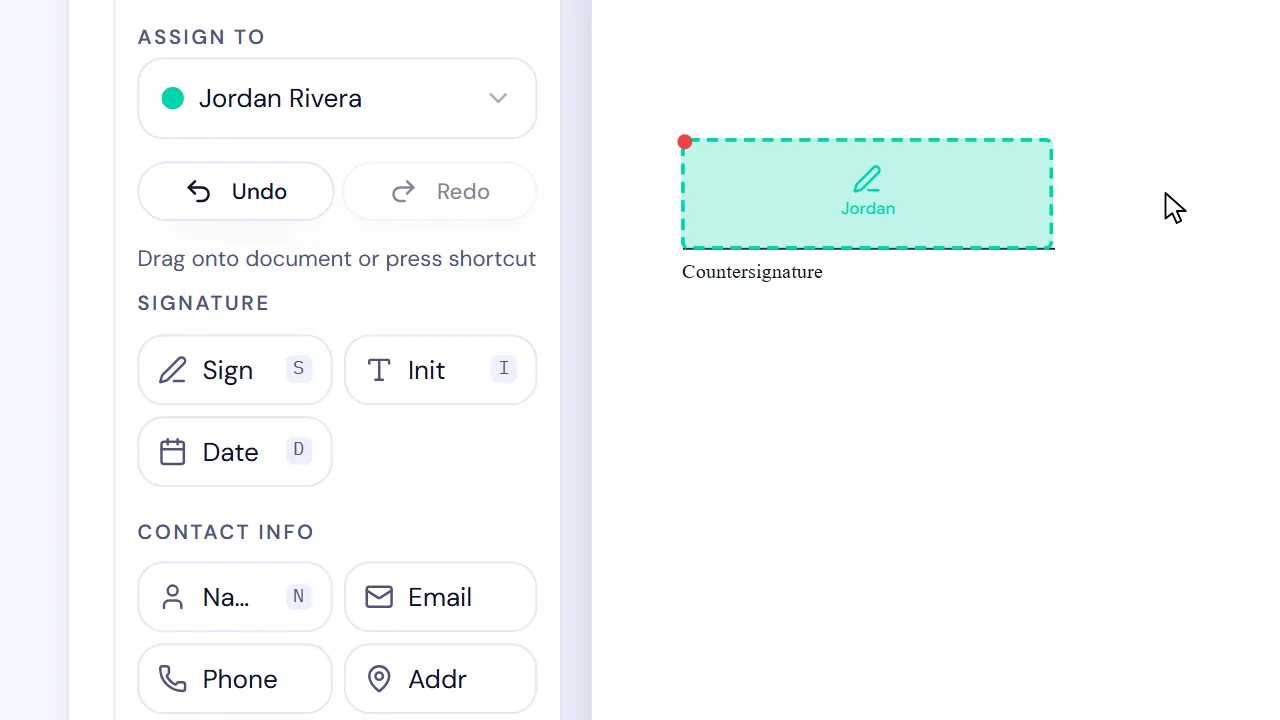
- Place signature, initials, date, text, or checkbox fields and assign each one to the right person.
- Review the PDF, recipients, field assignments, and signing order.
- Send each signer a browser link and retain the completed PDF with its signing record.
This is the workflow we use in SignQuick: start with New Document, choose Upload PDF, add recipients, select the appropriate recipient before placing each field, and send the request after reviewing it person by person. Recipients review and complete their assigned fields in a browser without creating a SignQuick account. If someone sent you a SignQuick request, the help center explains how to sign it from the invitation link.
Our practical check from walking through the flow: review fields by recipient, not only by page. Two signature fields can look correct on the PDF while both are assigned to the same person. For the complete sender walkthrough, see how to request an electronic signature on a PDF.
Do not print, sign, and scan unless it is actually required
Printing, signing, scanning, and emailing a PDF often creates a less readable file and another chance to lose a page or attach the wrong version. A direct PDF workflow also makes it easier to preserve the signed version that was actually returned.
That is not a reason to skip the sender’s instructions. If a government office, bank, court, or counterparty asks for a wet-ink original, a notarized document, a certificate-based signature, or a specific portal, follow that process. A general PDF-signing guide cannot decide which formalities apply to your document.
Check the final PDF before you send it
Use this short checklist after signing:
| Check | Why it matters |
|---|---|
| Correct version | The file still matches the terms you intended to approve |
| Complete fields | A missing date or checkbox can delay processing |
| Readable placement | Your signature and entries do not obscure the document |
| Saved copy | You can return the completed PDF without overwriting the original |
| Requested method | You followed any sender- or document-specific instruction |
If you spot an error after signing, do not edit that signed copy and present it as the original agreement. Correct the source file, label the new version clearly, and use the appropriate re-signing process.
Are PDFs signed electronically legally valid?
For transactions within its scope, 15 U.S.C. § 7001 generally provides that a signature, contract, or record may not be denied legal effect solely because it is electronic. That does not make every electronic PDF signature enforceable.
Consent, intent, attribution, the type of document, record retention, authority, governing law, and special formalities can all affect the result. Laws outside the United States differ. For a regulated, high-value, disputed, or cross-border matter, obtain qualified advice for the facts involved.
Use SignQuick when the document needs a signing process
SignQuick is built for the second case: a finished PDF that needs clear recipient actions, browser signing links, completion tracking, and a retained audit trail. It is not a substitute for a document-specific legal requirement, and it is not the only way to place your own signature on a simple form.
Create a free SignQuick account to test the request workflow with a harmless sample PDF. If you only need the short sender checklist, read how to send a document for e-signature.Research sources
- Adobe Acrobat Reader: Sign PDFs
- Apple Support: Fill out and sign PDF forms in Preview on Mac
- Apple Support: Use Markup on iPhone and iPad
- 15 U.S.C. § 7001 — General rule of validity
Sources and live search results checked August 25, 2026. This article provides general educational information, not legal advice.
Frequently asked questions
How can I sign a PDF without printing it?
Open the PDF in a tool that supports signing, fill in any required fields, create or select your signature, place it on the signature line, review the saved PDF, and return that saved copy. For a document that others must sign, use an e-signature request instead of passing around edited attachments.
Can I sign a PDF for free without printing?
Often, yes. Apple Preview and iPhone Markup can add a signature to a PDF on supported devices, and Adobe Acrobat Reader provides a Fill & Sign workflow. Check each tool’s current availability and whether the PDF has editing restrictions.
Is a typed or drawn PDF signature the same as a digital signature?
Not necessarily. A visible typed, drawn, or image signature is an electronic-signature method. A digital signature usually uses cryptography and a certificate. The required method depends on the document, parties, and applicable law.
What should I do if someone else also needs to sign the PDF?
Use an e-signature request. Add each signer, assign their fields, and send individual signing links. This makes the task clear for each person and keeps the completed document with its related signing record.
Can I edit a PDF after I sign it?
Do not change the version you have already signed and represent it as the signed agreement. If the terms need changing, correct the source document, create a clearly identified replacement PDF, and obtain signatures on that version.
Is a PDF signed without printing always legally enforceable?
No. In the United States, federal law generally prevents a signature or record from being denied legal effect solely because it is electronic for covered transactions, but consent, intent, attribution, document type, record retention, formalities, and jurisdiction can matter. Get qualified local advice when the transaction warrants it.