Signing documents
Zoom in on a document while you sign
Make small print readable on the signing page with the zoom buttons, a pinch or a double tap.
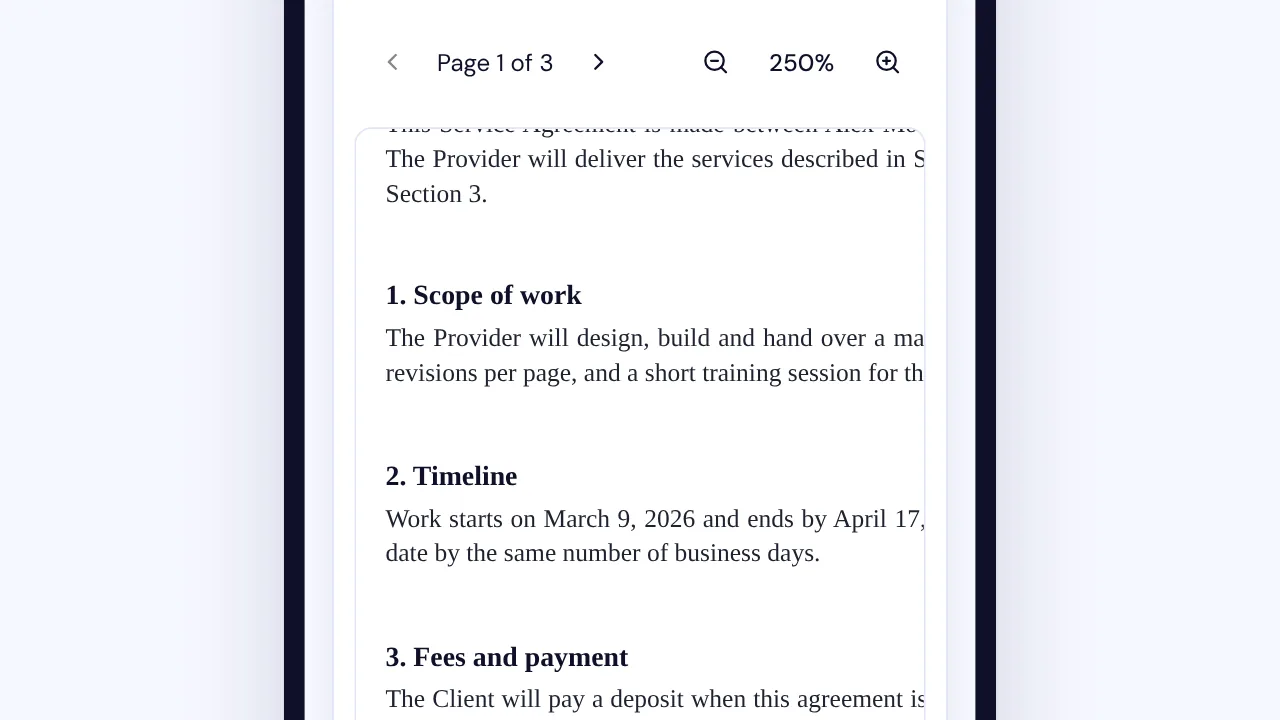
On the SignQuick signing page, pinch, double tap or select Zoom in to enlarge the document, then select the percentage to fit it again.
Zoom in and out
The document opens at the width of your screen. On a phone, that can make its text too small to read. You can zoom up to 400% and fill fields at any zoom, because they grow with the page.
- Step 1: Select Zoom in, the magnifier with a plus sign next to the page number. Each press steps to the next size: 150%, 200%, 250%, 300%, then 400%.
- Step 2: On a touch screen, you can also pinch the page, or double tap it to zoom to 200%.
- Step 3: Drag the page with one finger to move around it.
- Step 4: Select Zoom out, the magnifier with a minus sign, to step back down.
- Step 5: To fit the page to the screen again, select the percentage between the two zoom buttons, or double tap the page.
Result: The page fits the width of the screen again, and the percentage shows 100%.