Account and security
Work in more than one workspace
Create a separate workspace for another business or client, and switch between your workspaces from the sidebar.
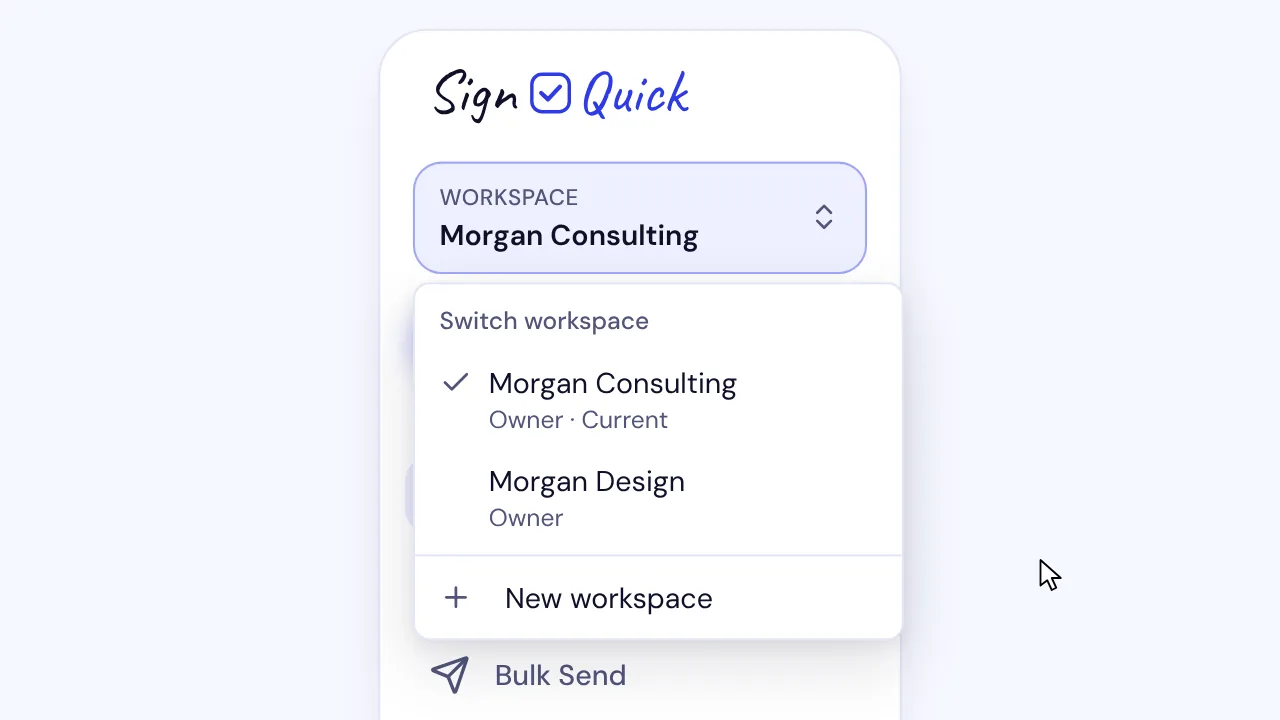
In SignQuick, open the workspace switcher in the sidebar and select New workspace to create one, or pick a workspace to switch.
Who can use this feature?
- Plans
- All plans. While you own a workspace on the Free plan, you can't create another one. An account can belong to up to 20 workspaces, including the ones it joined by invitation.
- Who can do it
- Anyone with a SignQuick account can create a workspace and becomes its Owner. You can open only the workspaces where your seat is active.
Create a workspace
Each workspace has its own documents, templates, contacts, team and plan, so you can keep two businesses or clients apart. You keep one account and one sign-in for all of them.
- Step 1: In the sidebar, select the switcher that shows Workspace and the name of the workspace you're in.
- Step 2: Select New workspace.
- Step 3: In Workspace name, enter a name of up to 100 characters.
- Step 4: Select Create workspace.
Result: SignQuick opens the new workspace's dashboard, and the switcher shows its name. You're its Owner, and your other workspaces stay as they were.
Switch to another workspace
The switcher lists every workspace you belong to, with your role in each. Current marks the one that's open.
- Step 1: In the sidebar, select the switcher.
- Step 2: Under Switch workspace, select the workspace to open.
Result: SignQuick opens that workspace's dashboard, with its own documents, templates and contacts.
Common questions
Why can't I create another workspace?
You can own one workspace on the Free plan at a time. If the dialog says You already own a workspace on the Free plan, open that workspace and upgrade it in Billing first. If it says You have reached the limit of 20 workspaces, your account already belongs to 20.
Why can't I open a workspace in the list?
If it shows Seat paused, your seat there isn't active, so ask that workspace's Owner. If SignQuick says the workspace requires single sign-on, sign in through your organization's identity provider first.
Why do I see only one workspace after signing in with single sign-on?
An account that signs in through an organization's single sign-on can use only that organization's workspace.