Sending documents
Send only the documents a request needs
Split a template's PDF into documents, like the agreement and its addenda, and send each one always, by choice or when variables match.
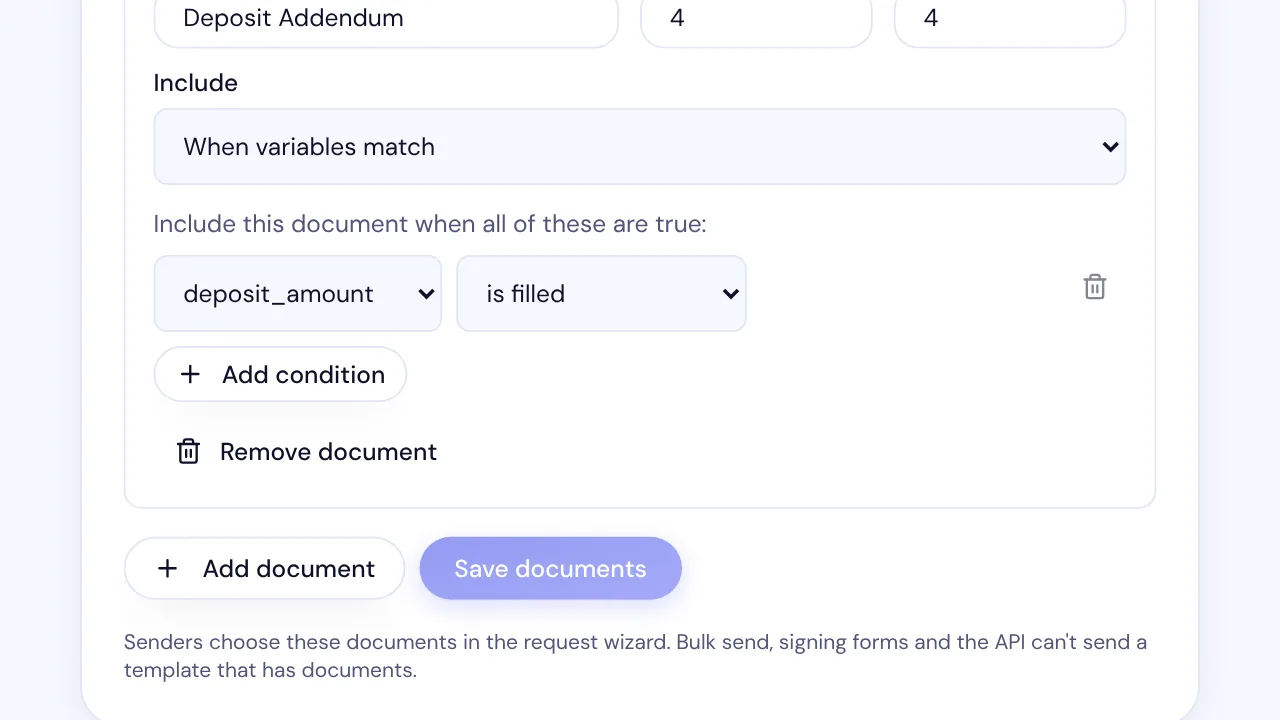
In SignQuick, split a template's PDF into documents in Documents in this template, and senders get only the documents that apply.
Who can use this feature?
- Who can do it
- Anyone who can edit the template sets up its documents. Anyone who can use the template chooses them when sending.
Split a template into documents
Each document is a range of the template's pages, such as the main agreement and its addenda. Pages outside every document are always sent.
- Step 1: In Templates, select the template's name.
- Step 2: In Documents in this template, select Add document.
- Step 3: Enter a Name, then the First page and Last page it covers.
- Step 4: In Include, choose Always, Sender chooses, on by default, Sender chooses, off by default or When variables match.
- Step 5: For When variables match, pick the variable and the comparison, and enter a value when the comparison needs one.
- Step 6: Select Save documents.
Result: SignQuick shows Documents saved.
Common questions
Can a document be left out if a field on another page depends on it?
No. SignQuick refuses to save that setup. Move the field, or make the document it depends on always sent.
Choose the documents when you send
- Step 1: Open the template and, in Versions and publishing, select Use this version.
- Step 2: In Choose the documents to send, enter the values the template asks for and tick the optional documents you want.
- Step 3: Select Use these documents.
Result: The button changes to Documents in use, and the PDF has only those documents. Continue with the recipients as usual.