Sending documents
Add a witness that a signer names
Ask a signer to name the witness for their signature. The witness gets their own link after that signer signs.
In SignQuick, turn on Witness chosen by another signer for a recipient row, and that signer enters the witness's name and email while signing.
Who can use this feature?
- Before you start
- At least two recipients and Sign in order (1, 2, 3...) under Signing Order.
- The witness and the signer who names them sign by email, in a document that isn't part of a packet.
Add a witness slot for a signer
- Step 1: In the sidebar, select New Document, upload the PDF and select Continue.
- Step 2: In Add Recipients, enter the signer's Name and Email.
- Step 3: Select Add Another Recipient for the witness, and leave its name and email blank.
- Step 4: Under Signing Order, choose Sign in order (1, 2, 3...).
- Step 5: In the witness's row, turn on Witness chosen by another signer.
- Step 6: In Who names the witness, choose the signer.
- Step 7: Select Continue, place the witness's fields and select Send for Signature.
Result: The witness's row reads that the signer enters this witness's name and email while signing. The witness signs in a later stage than the signer who names them.
Name your witness as a signer
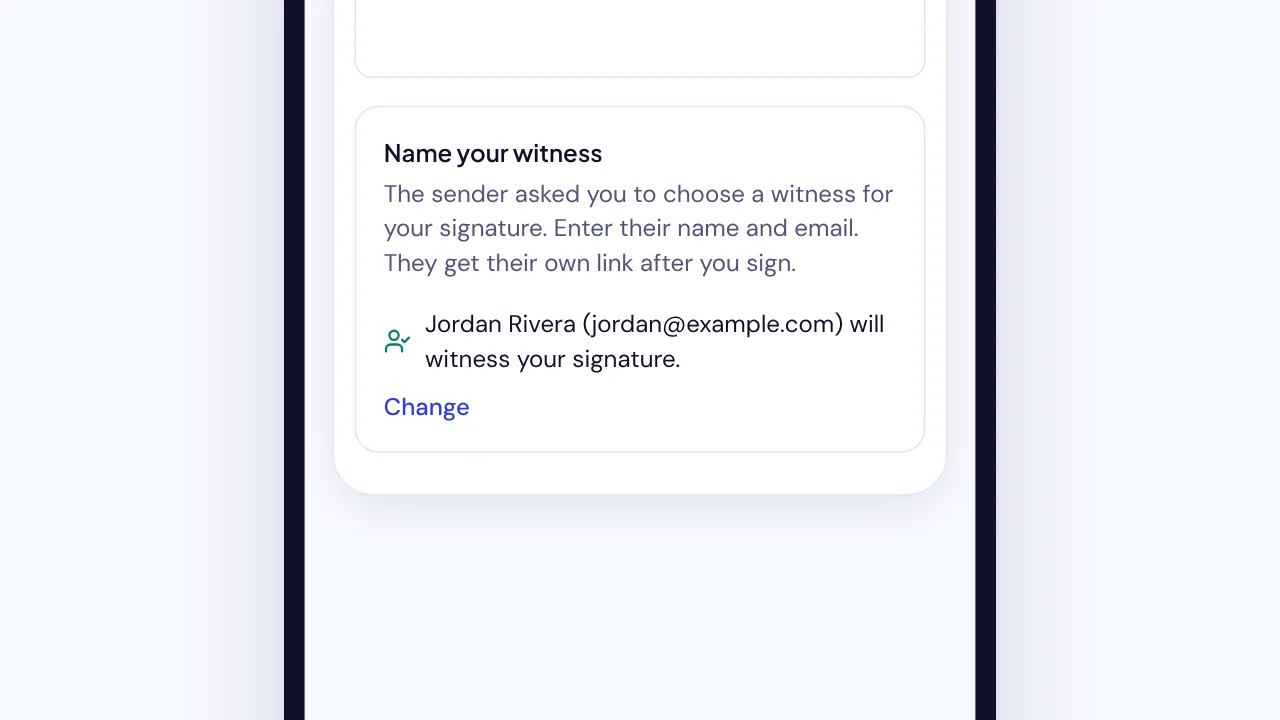
When the sender asks you to choose a witness, Name your witness appears under the document. You can't finish signing until you name them.
- Step 1: Open the signing link from your email.
- Step 2: In Name your witness, enter the Witness's full name and Witness's email.
- Step 3: Select Save witness.
- Step 4: Fill in your fields and finish signing.
Result: The section shows who will witness your signature. The witness gets their own signing link once you sign, and their page says you chose them.
Common questions
Where do I see who was named?
On the document's page, the witness's row shows who names them and waits for a name until the signer saves one. The audit trail records when the slot was added and when the signer named the witness.
Why can't I turn on the witness switch?
Choose Sign in order (1, 2, 3...) first. The switch also stays off for in-person signers, for documents in a packet, and for a signer who already names a witness.