Signing documents
Sign with a picture of your signature
Upload a photo or scan of your signature instead of drawing it, and choose which signature methods your signers can use.
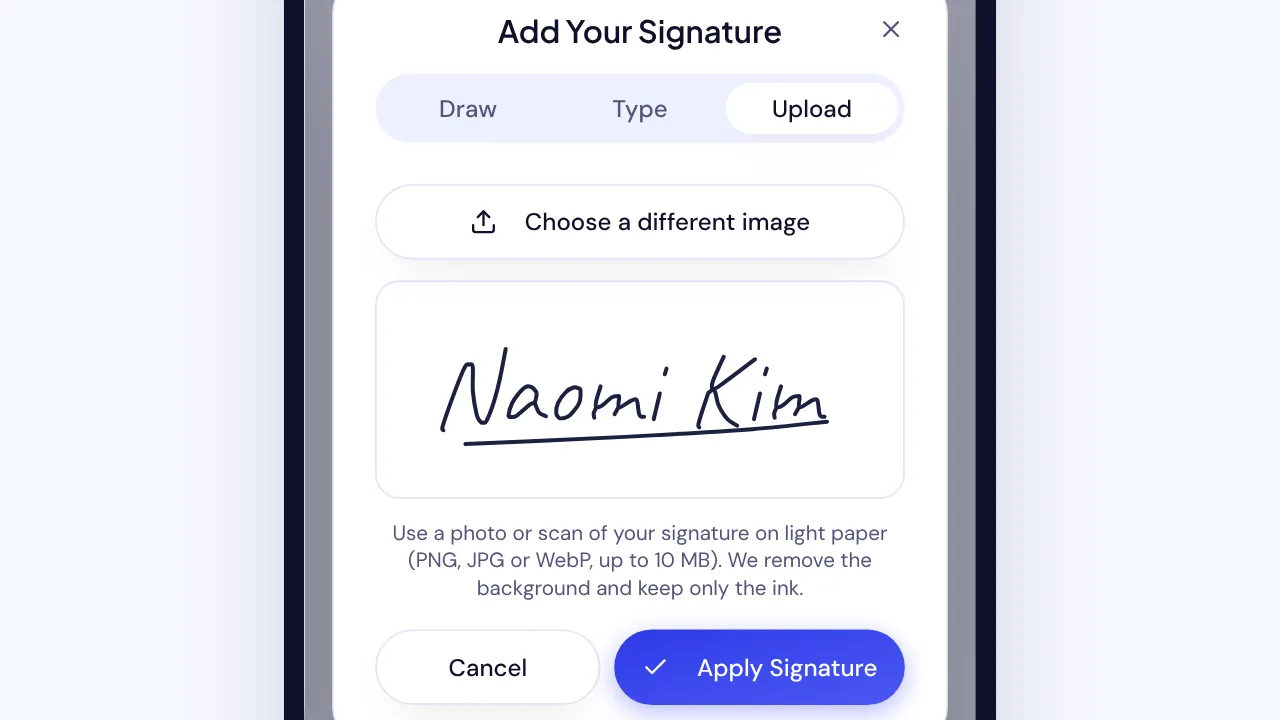
In the SignQuick signature dialog, select Upload and choose a photo of your signature; SignQuick removes the background and keeps only the ink.
Who can use this feature?
- Plans
- Every plan.
- Who can do it
- Owners and Admins choose the signature methods. Signers see Upload only when the sender's organization allows it.
Upload a picture of your signature
Sign on light paper with dark ink, then take a photo or scan of it. A PNG, JPG or WebP image of up to 10 MB works. The picture never leaves your device: your browser removes the paper and the background and keeps only the ink.
- Step 1: On the signing page, select your signature or initials field.
- Step 2: In Add Your Signature, select Upload.
- Step 3: Select Choose an image and pick the photo or scan.
- Step 4: Check the preview, which shows your signature as it will appear on the document.
- Step 5: To use another picture, select Choose a different image.
- Step 6: Select Apply Signature.
Result: The field shows your signature. Finish your other fields, then select Complete Signing.
Common questions
Why don't I see the Upload tab?
The sender's organization chose which signature methods its signers can use. If Upload is missing, draw your signature, or type it when Type is offered.
Why was my image refused?
SVG, GIF, HEIC and animated images aren't accepted, and very large photos are refused. If no signature is found, use dark ink on light paper and crop the photo close to the signature.
Choose which signature methods signers can use
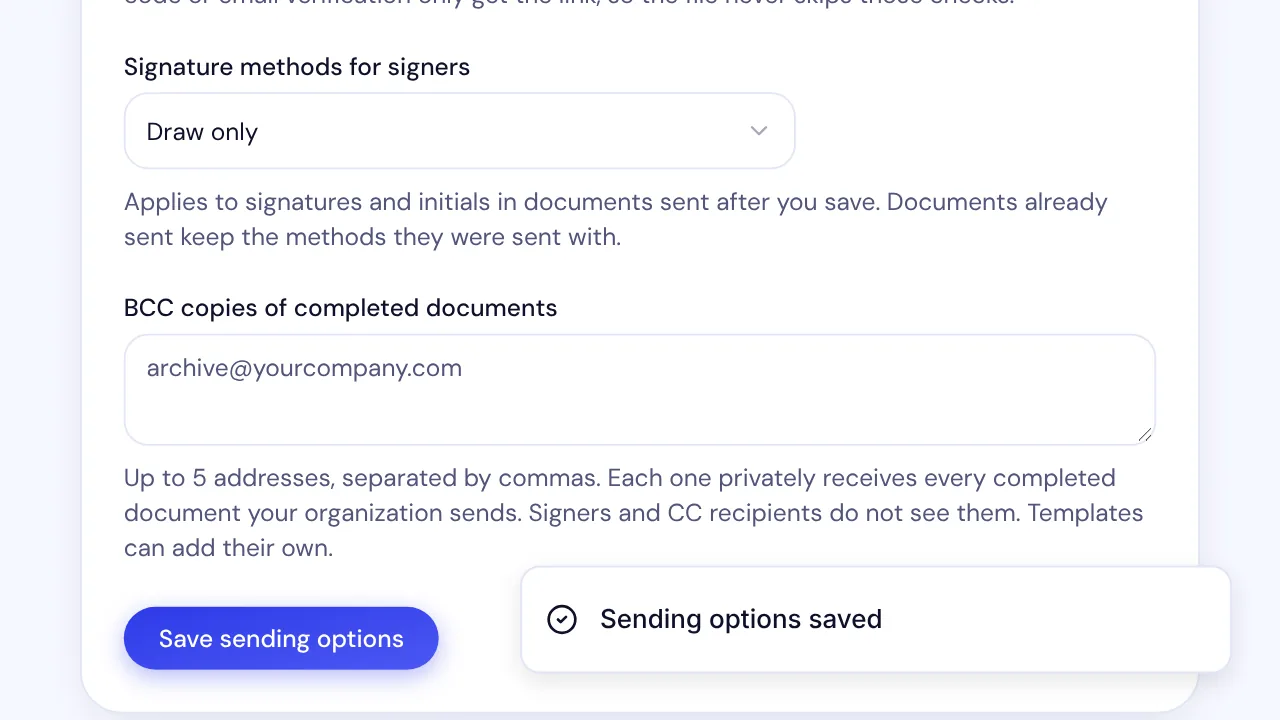
By default, signers can draw, type or upload their signature. You can limit every new document your organization sends to drawn and typed signatures, or to drawn signatures only.
- Step 1: In the sidebar, select Settings, the gear icon next to your name.
- Step 2: Select Organization.
- Step 3: In Sending and signing options, open Signature methods for signers.
- Step 4: Choose Draw, type or upload an image, Draw or type, or Draw only.
- Step 5: Select Save sending options.
Result: SignQuick shows Sending options saved. The choice applies to signatures and initials in documents sent after you save.