Account and security
Keep records and place legal holds
Choose how long your organization keeps final documents, and stop a document from being deleted with a legal hold.
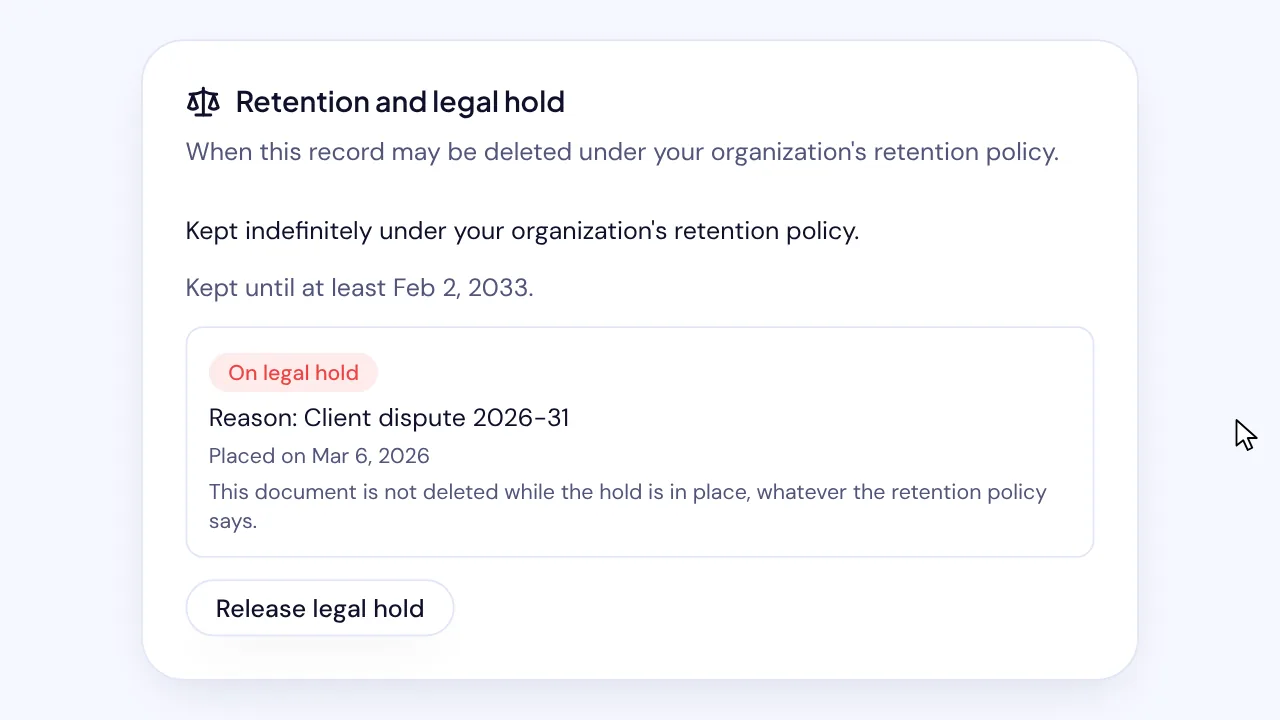
In SignQuick, the organization owner sets how long final documents are kept, and Owners and Admins place legal holds that stop a document's deletion.
Who can use this feature?
- Plans
- Every plan.
- Who can do it
- Only the organization owner changes the retention policy and permanently deletes documents. Owners and Admins place and release legal holds.
Place a legal hold on a document
A legal hold keeps a document and its audit trail from being deleted, whatever the retention policy says, until an Owner or Admin releases it. The reason you give is recorded.
- Step 1: In the sidebar, select Documents, then open the document.
- Step 2: Select the Proof and records tab.
- Step 3: Under Retention and legal hold, select Place legal hold.
- Step 4: Enter the Reason, then select Place hold.
Result: SignQuick shows Legal hold placed, and the card shows On legal hold with the reason and the date.
Release a legal hold
- Step 1: On the document's page, select the Proof and records tab.
- Step 2: Under Retention and legal hold, select Release legal hold.
- Step 3: Enter the Reason, then select Release hold.
Result: SignQuick shows Legal hold released. The retention policy applies to the document again, and the hold and its release stay in the record.
Set your organization's retention policy
The retention policy decides how long SignQuick keeps completed, declined, voided and expired documents with their audit trails. Records are always kept for at least 7 years.
- Step 1: In the sidebar, select Settings, the gear icon next to your name.
- Step 2: Select Organization.
- Step 3: Under Record retention, choose Keep records indefinitely, or choose Delete records a number of years after they are final and enter the Years to keep, from 7 to 100.
- Step 4: Select Save retention policy. If you turned on deletion or shortened it, select Save policy to confirm.
Result: SignQuick shows Retention policy saved, and the card shows the current policy.
Permanently delete a document that was never completed
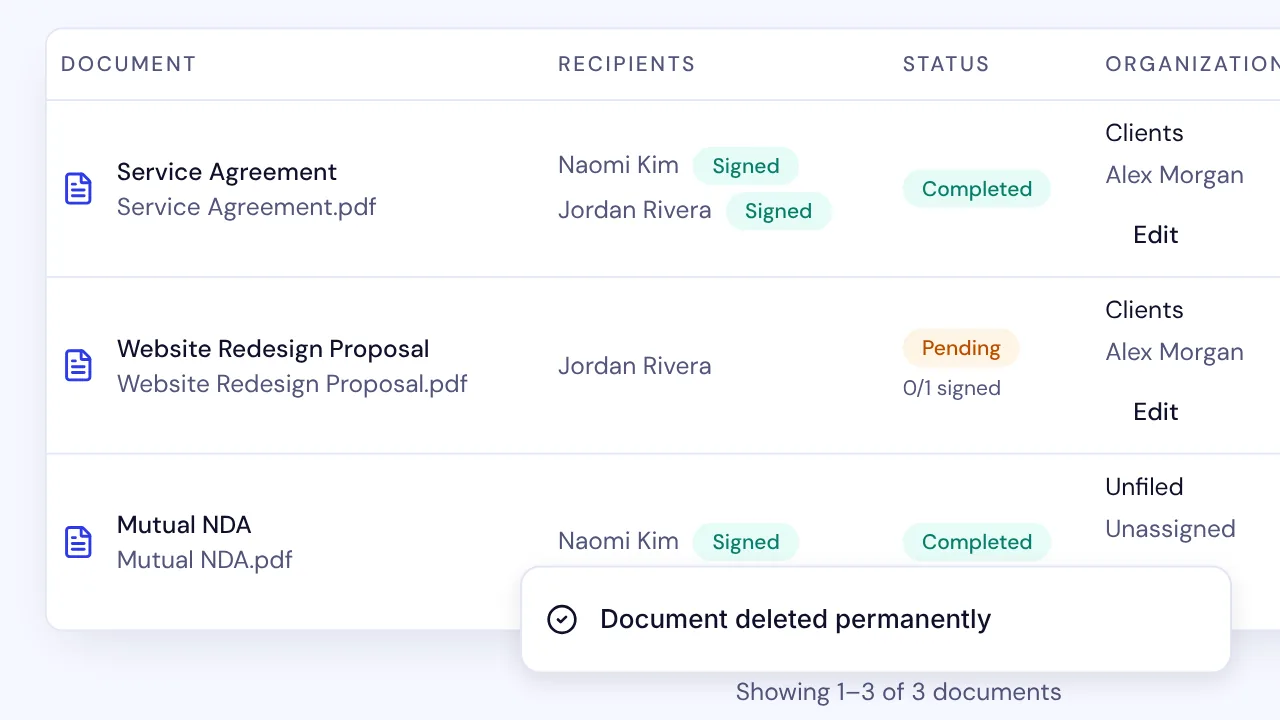
The organization owner can delete a declined, voided or expired document that was never completed, without waiting for its retention date.
- Step 1: In the sidebar, select Documents, then open the document.
- Step 2: Select the Proof and records tab.
- Step 3: Under Retention and legal hold, select Delete permanently.
- Step 4: In Delete this document permanently?, select Delete permanently to confirm.
Result: SignQuick shows Document deleted permanently. The document, its recipients, fields and audit trail are gone, and its stored files are removed in the next nightly run. Only a receipt with its ID, status and dates is kept.
Common questions
Can a document be deleted before its keep-until date?
Not a completed one. A completed document is never deleted before the retention date recorded when it was created, or while it is on legal hold. Its page shows that date on the Proof and records tab, under Retention and legal hold. Only a document that was never completed can be deleted sooner, by the organization owner.
Which documents does the retention policy cover?
Completed, declined, voided and expired documents. The period starts when the document reaches one of those states. Drafts and documents still out for signature are never deleted by the policy.
Can deleted records be recovered?
No. Deleted documents and their files can't be recovered, so place a legal hold on any document you may need.