Getting started
Install SignQuick as an app
Add SignQuick to your Home Screen, Dock or app list so it opens in its own window like any other app.
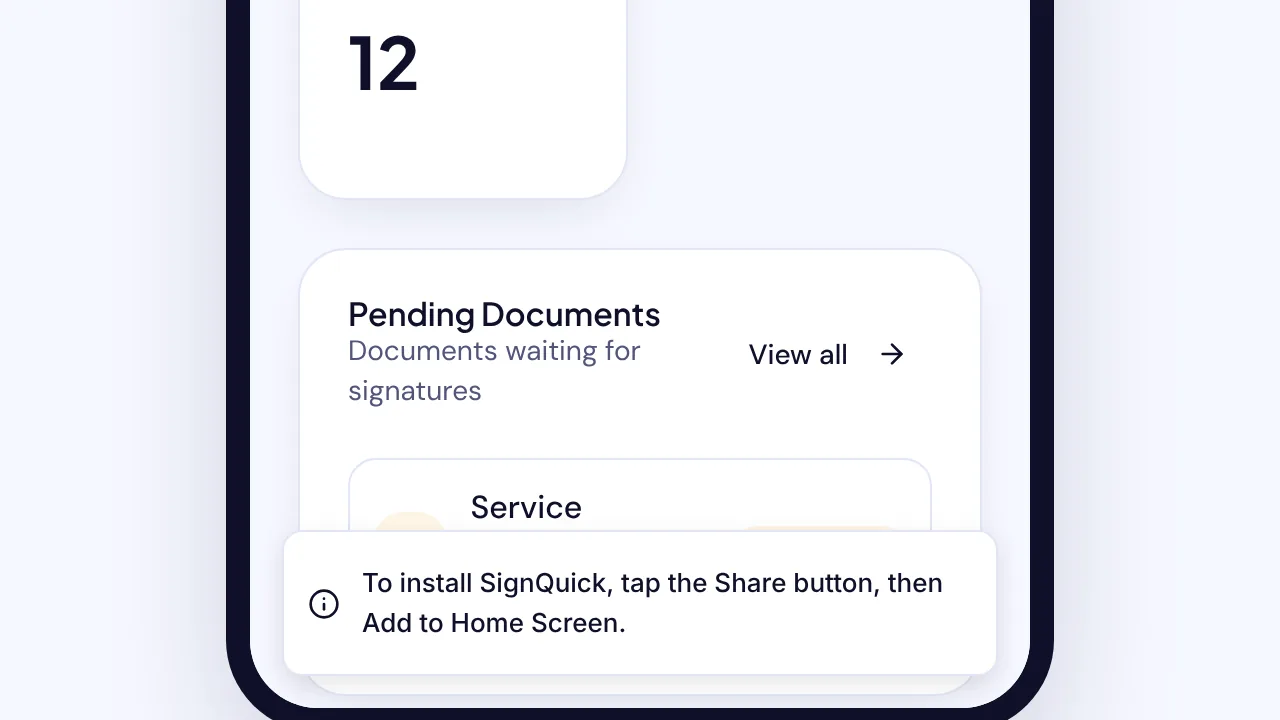
To install SignQuick as an app, open the account menu in the dashboard, select Install app and follow the steps for your device.
Who can use this feature?
- Before you start
- A browser that can install web apps: Safari on iPhone or iPad, Chrome, Edge or another Chromium browser, or Safari 17 or later on a Mac. Install app doesn't appear in other browsers or once SignQuick is installed.
Install on an iPhone or iPad
- Step 1: Sign in to SignQuick in Safari.
- Step 2: In the dashboard header, select your avatar, the circle with your initials.
- Step 3: Select Install app.
- Step 4: Follow the message that appears: tap the Share button, then Add to Home Screen.
Result: SignQuick appears on your Home Screen and opens in its own window, without the browser's address bar.
Install on Android or a computer
In Safari on a Mac, Install app shows a message instead: choose File, then Add to Dock.
- Step 1: Sign in to SignQuick in Chrome, Edge or another Chromium browser.
- Step 2: In the dashboard header, select your avatar, the circle with your initials.
- Step 3: Select Install app.
- Step 4: In the browser's dialog, select Install.
Result: SignQuick opens in its own window and appears with your other apps. Where your device supports it, touching and holding or right-clicking the app icon offers shortcuts to New document, Documents, Templates and Contacts.
Common questions
Why don't I see Install app?
SignQuick shows it only where installing works and SignQuick isn't installed yet. If you closed the browser's dialog, the browser decides when to offer it again. Firefox doesn't install web apps.
What happens when I'm offline?
The app shows You're offline instead of the browser's error page and reloads on its own when your connection is back. Documents you already sent or signed are not affected.