Sending documents
Calculate totals and formulas in a document
Turn a Number field into a calculated value that adds up other answers or works out a formula, such as hours times rate.
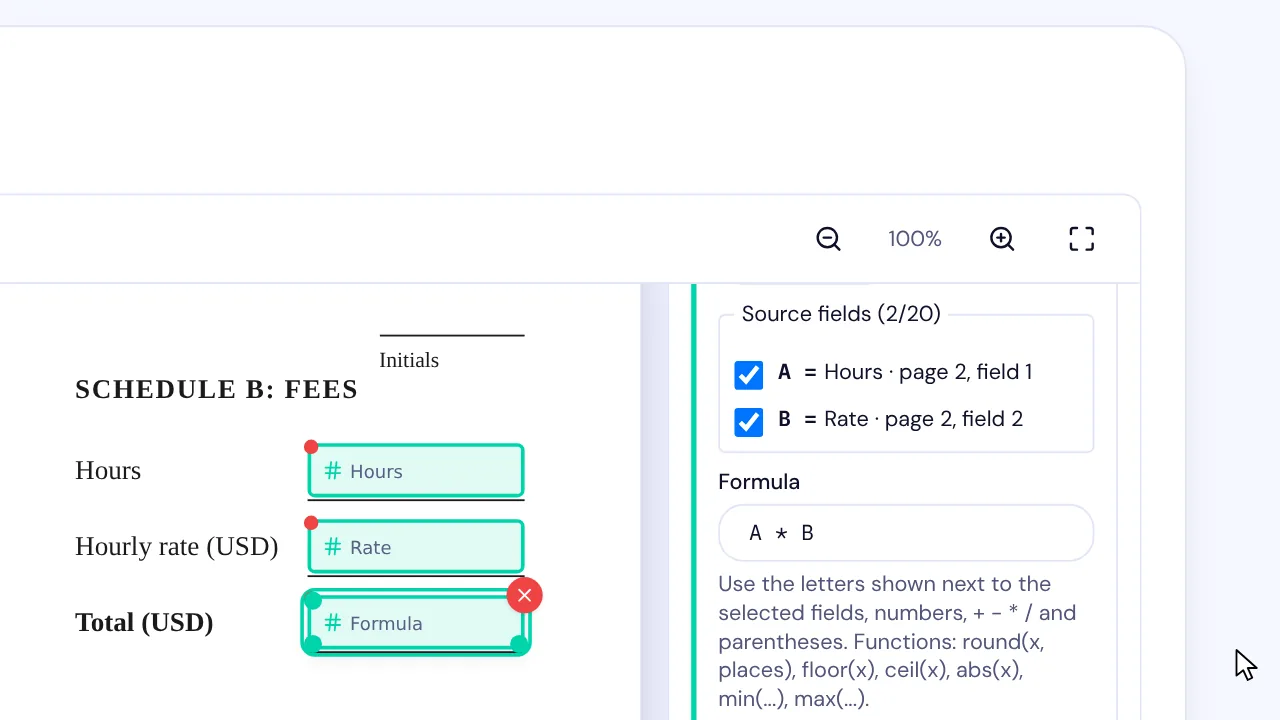
In SignQuick, a Number field can calculate its value from the same signer's other answers, as a sum or as a formula.
Add a formula field
A calculated value is a Number field that fills itself in from other answers of the same signer. Sum of fields adds 2 to 20 Number fields. Formula works with 1 to 20 Number fields or checkboxes, and each one you pick gets a letter to use in the formula.
This works the same in a new document and in a template.
- Step 1: On Add Signature Fields, place a Number field for each value the signer enters, and one where the result should print. Assign them all to the same signer.
- Step 2: Select the result field and turn on Calculated value.
- Step 3: Under Calculation, choose Formula.
- Step 4: Under Source fields, check the fields to use. They get the letters A, B, C and so on, in the order you check them.
- Step 5: In Formula, type the calculation with those letters, for example A * B.
- Step 6: Choose the Decimal places in the result, from 0 to 6.
- Step 7: Select Apply calculation.
Result: The panel's messages clear once the formula is valid. After you apply it, the field reads Formula on the page unless you gave it a placeholder.
Write a formula
Use the letters next to the checked fields, numbers, + - * / and parentheses. You can also use round(x, places), floor(x), ceil(x), abs(x), min(...) and max(...). Every checked field has to appear in the formula, and a formula can be up to 500 characters.
Some examples: A * B multiplies a quantity by a price. (A + B) * 8 / 100 is 8 percent of a subtotal. round(A / 3, 2) is a third of A to 2 decimal places. max(A - B, 0) + C * 25 never goes under zero and adds 25 when checkbox C is checked.
SignQuick calculates exactly and rounds only the result, to the decimal places you chose, with halves rounded away from zero. If something is wrong, the message under Formula points to the character to check.
Add up fields with Sum of fields
Sum of fields adds 2 to 20 Number fields of one signer. A checkbox can count too: select it and type a price in Amount when checked. The total adds that amount when the box is checked, and 0 when it's unchecked or hidden.
- Step 1: Select the total field and turn on Calculated value.
- Step 2: Keep Sum of fields under Calculation.
- Step 3: Under Source fields, check 2 to 20 fields.
- Step 4: Select Apply calculation.
Result: The field reads Sum on the page unless you gave it a placeholder.
What the signer sees
The signer sees each calculated value fill in as they answer, and can't type in it. Empty optional fields and hidden fields count as zero, and in a formula a checked box counts as 1.
If a source holds an invalid number, or the formula would divide by zero, the signer sees why and can't finish until they correct the answer. When they finish, SignQuick checks every result again before it prints it on the signed PDF.
A calculated field is always shown, so it can't have conditions of its own, but other fields can use its result in a condition. It also can't be repeated on other pages.
Common questions
Can a formula use fields from two signers?
No. Every source has to belong to the same signer as the calculated field, so one signer's answers decide the result.
Can a formula use another calculated field?
No. Sources are Number fields and checkboxes that the signer fills in, so a formula can't read another calculated value.