Signing documents
Let signers hand a document to the right person
Let a signer who isn't the right person send the document to someone else, who gets their own signing link.
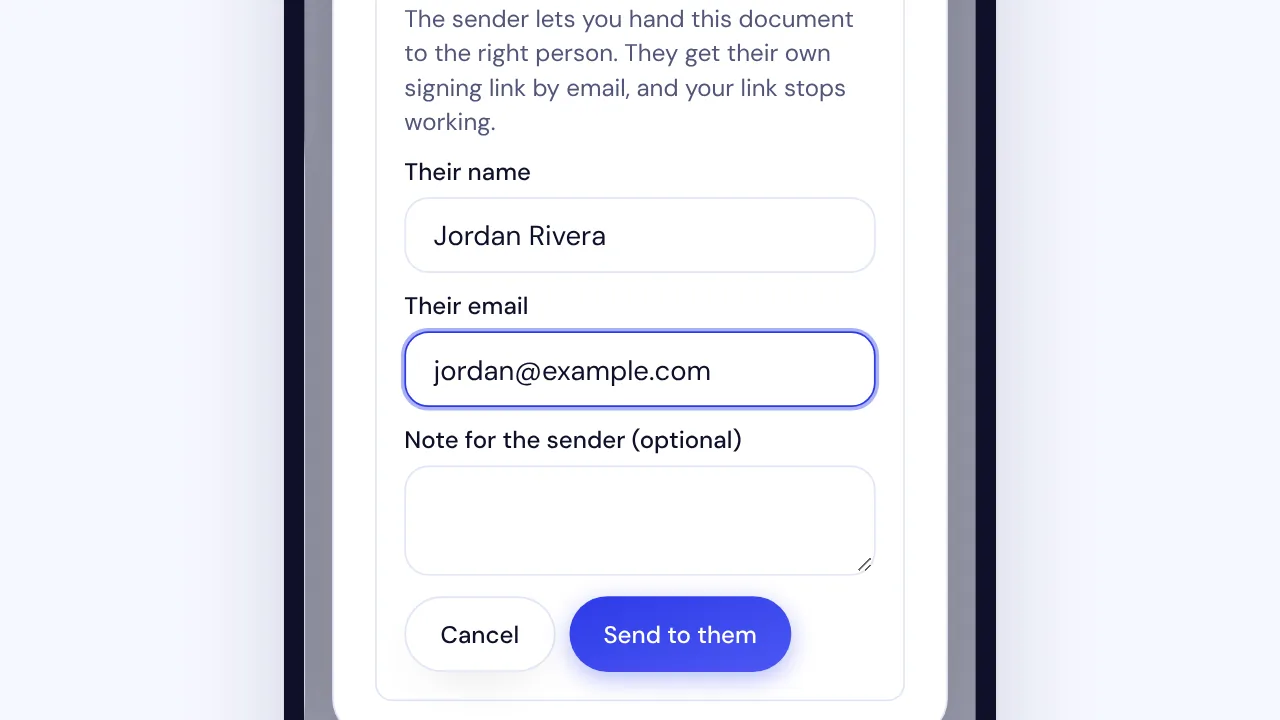
In SignQuick, choose Let signers delegate directly so a signer who isn't the right person can hand the document to someone else.
Who can use this feature?
- Who can do it
- Owners and Admins set the organization default. The sender, or an Owner or Admin who can send documents, can change it on one document.
Choose what happens when a signer isn't the right person
By default, SignQuick asks you first: the signer sends you a request with the person they suggest, and you decide who signs. With direct delegation, the signer names the right person, who gets a new signing link right away, and you get an email.
- Step 1: In the sidebar, select Settings, the gear icon next to your name.
- Step 2: Select Organization.
- Step 3: In Signer delegation, open When a signer isn't the right person.
- Step 4: Choose Let signers delegate directly, or Ask me first to review each request.
Result: SignQuick shows Delegation setting saved. The choice applies right away to every document that uses the organization default, including documents already sent.
Change the setting for one document
- Step 1: In the sidebar, select Documents.
- Step 2: Open the draft or pending document.
- Step 3: In Signer delegation, open When a signer isn't the right person.
- Step 4: Choose Use the organization default, Ask me first or Let signers delegate directly.
Result: SignQuick shows Delegation setting saved. Signers of this document follow this choice instead of the organization default.
Hand a document to someone else as a signer
When the sender allows it, the consent notice that opens before the document offers a link to send it to the right person.
- Step 1: Open the signing link from your email.
- Step 2: In the consent notice, select Not the right person? Send this to someone else.
- Step 3: Enter Their name and Their email.
- Step 4: Optionally, add a Note for the sender (optional).
- Step 5: Select Send to them.
Result: The page confirms who you sent it to. They get their own signing link by email, your link stops working, and the sender gets an email. The audit trail records the delegation.
Common questions
Why don't I see the link to send it to someone else?
Direct delegation works only before you accept the consent notice and before anyone else signs, and not for in-person, embedded or packet signing. If you already accepted it or someone else signed, select I'm not the right person to sign this on the signing page, and the sender reviews your request.
What if SignQuick can't hand it over directly?
Your request goes to the sender, who decides who signs. The page tells you the sender was notified.