Account and security
Send recipient emails from your own mailbox
Let signature requests, reminders and completed-document emails go out from your workspace's Gmail, Outlook or mail server.
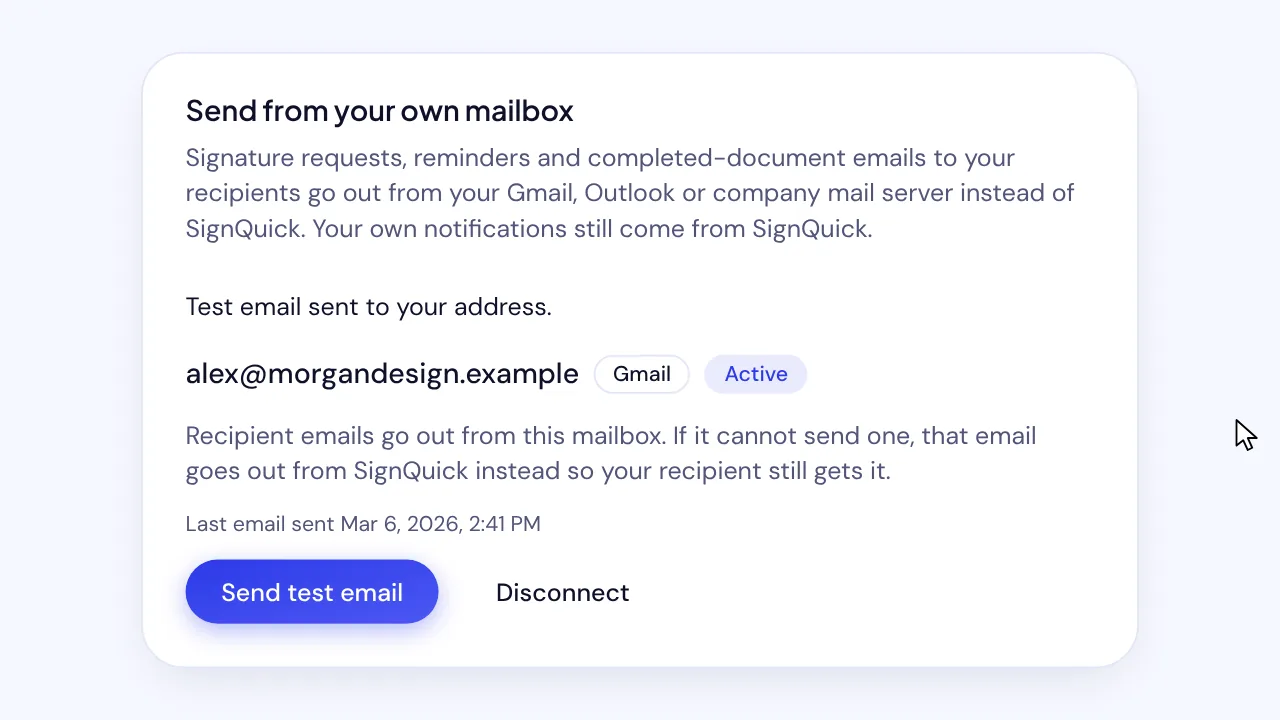
On SignQuick's Team plan, an Owner or Admin connects Gmail, Outlook or an SMTP server in Settings, then Branding, to send recipient emails.
Who can use this feature?
- Plans
- Team. On other plans, the card says sending from your own mailbox is part of the Team plan and shows View plans.
- Who can do it
- Only Owners and Admins connect, test or disconnect the mailbox.
Connect Gmail or Outlook
Signature requests, reminders and completed-document emails to your recipients go out from the connected mailbox. Your own notifications still come from SignQuick. SignQuick asks only for permission to send email as that account, so it can't read your mail.
- Step 1: In the sidebar, select Settings, the gear icon next to your name.
- Step 2: Select Branding.
- Step 3: Under Send from your own mailbox, select Connect Gmail or Connect Outlook.
- Step 4: Sign in with the account to send from, and allow SignQuick to send email for it.
- Step 5: Back in SignQuick, select Send test email.
Result: The mailbox shows Active, SignQuick shows Test email sent to your address, and the test email arrives in your inbox.
Connect another provider with SMTP
SignQuick connects only over an encrypted connection, checks the login before it saves it, and stores the password encrypted.
- Step 1: Under Send from your own mailbox, select Use another provider (SMTP).
- Step 2: Enter the From address, the SMTP server and the Port and security from your email provider.
- Step 3: Enter the Username if it isn't the From address, then the Password.
- Step 4: Select Check and connect.
Result: SignQuick shows Mailbox connected, and the mailbox shows SMTP with your server's name.
Common questions
Why does my mailbox need to be reconnected?
If it shows Reconnect needed, the provider stopped accepting the saved login, for example after a password change. Recipient emails go out from SignQuick until you connect the mailbox again.
What happens if the person who connected the mailbox leaves?
Once they're no longer an active member, the mailbox isn't used and recipient emails go out from SignQuick. An Owner or Admin needs to connect it again.
How do I go back to sending from SignQuick?
Select Disconnect and confirm. Recipient emails go out from SignQuick again.