Account and security
Use your own domain for emails and signing links
Send recipient emails from your own domain, and send signing links on your own web address, such as sign.yourcompany.com.
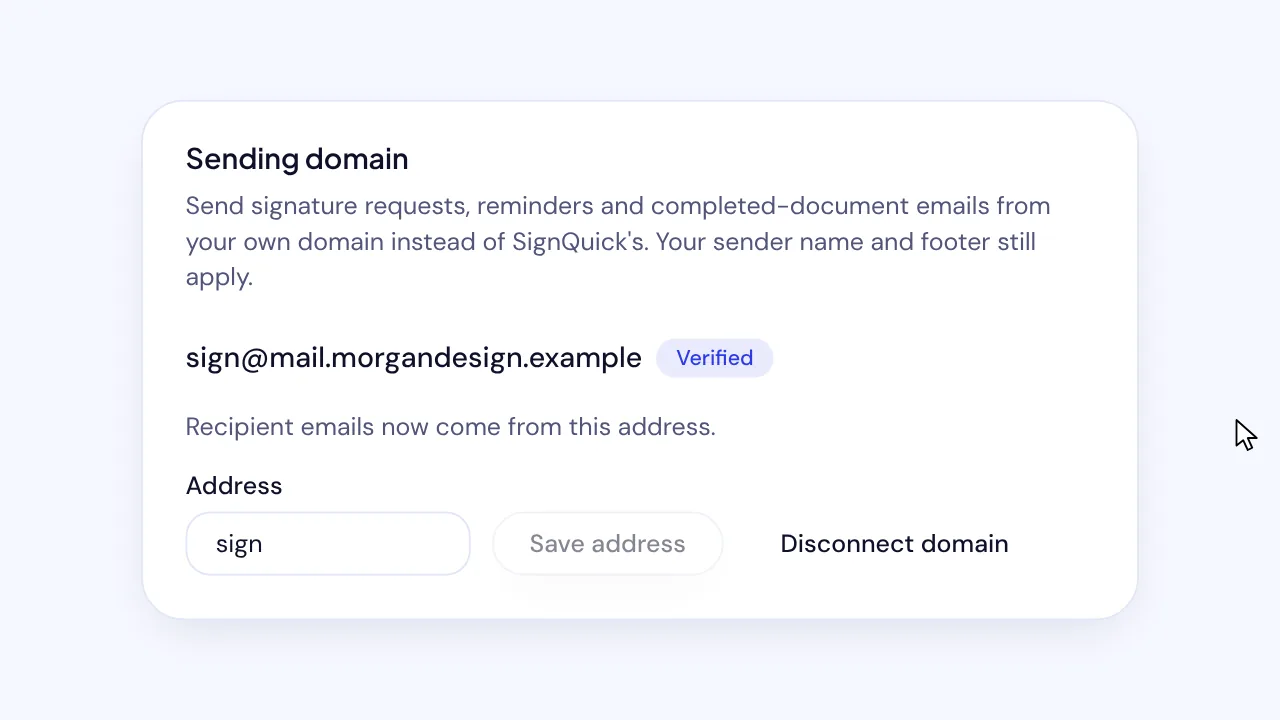
On SignQuick's Team plan, an Owner or Admin connects a sending domain and a signing address in Settings, then Branding, and adds their DNS records.
Who can use this feature?
- Plans
- Team. On other plans, each card says the feature is part of the Team plan and shows View plans.
- Who can do it
- Only Owners and Admins connect, check or disconnect a domain. Everyone else sees the cards read-only.
Send emails from your own domain
With a sending domain, signature requests, reminders and completed-document emails come from an address on your domain, such as [email protected]. Your sender name and footer from Branding still apply. Until the domain is verified, emails keep coming from SignQuick.
- Step 1: In the sidebar, select Settings, the gear icon next to your name.
- Step 2: Select Branding.
- Step 3: Under Sending domain, keep sign in Address or change it, and enter a domain or subdomain you control in Domain.
- Step 4: Select Connect domain.
- Step 5: At your DNS provider, add each record under DNS records to add, with its type, name and value.
- Step 6: Select Check verification.
Result: Once the email provider finds the records, the domain shows Verified and recipient emails come from your address. DNS changes can take a few hours, and SignQuick also updates the status on its own.
Send signing links on your own web address
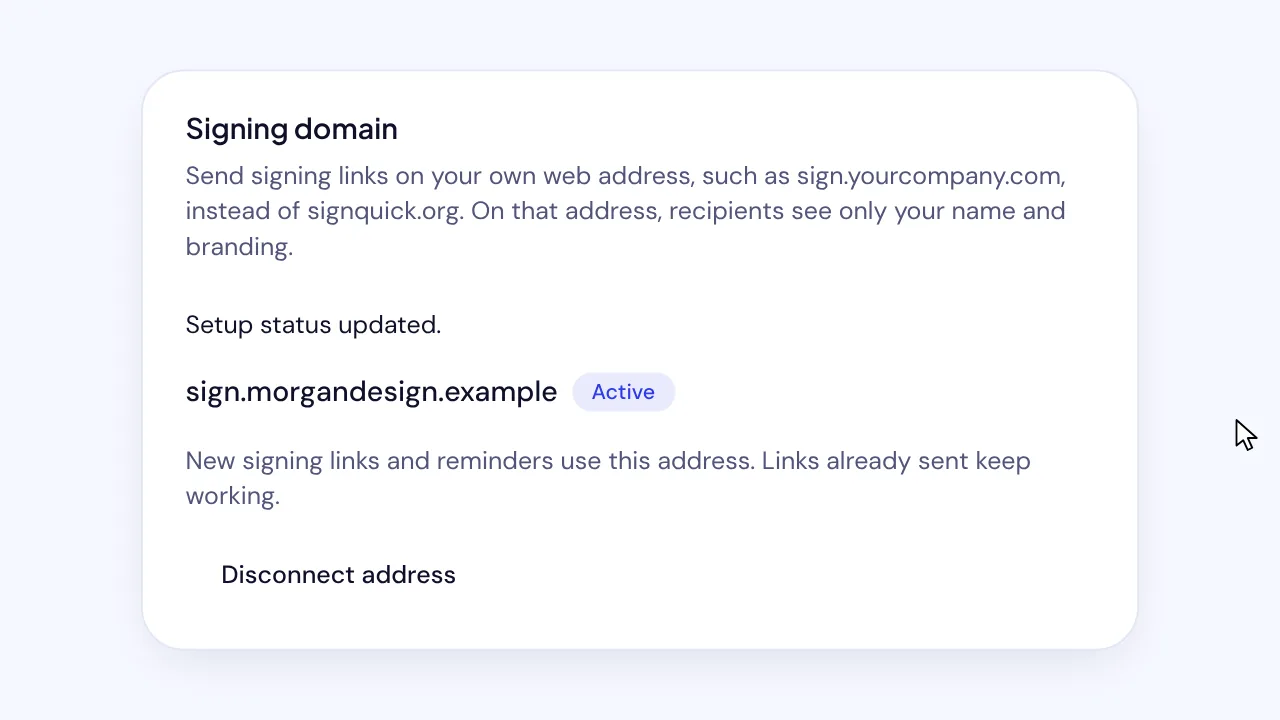
With a signing domain, signing links point to your own address, such as sign.yourcompany.com, in place of signquick.org. On that address, recipients see only your name and branding. Until the address is ready, links keep pointing to SignQuick.
- Step 1: In the sidebar, select Settings, the gear icon next to your name.
- Step 2: Select Branding.
- Step 3: Under Signing domain, enter a subdomain you control in Web address.
- Step 4: Select Connect address.
- Step 5: At your DNS provider, add the record under DNS records to add. For a subdomain, it's a CNAME record.
- Step 6: Select Check setup.
Result: The address shows Active. New signing links and reminders use it, and links you already sent keep working.
Common questions
Why do emails still come from SignQuick?
SignQuick keeps sending from its own address until the domain shows Verified, so nothing bounces while DNS changes spread. Check that every record under DNS records to add is in place, then select Check verification again.
Can I use a root domain for signing links?
Yes, but a root domain needs an A record in place of the CNAME, and the card says so. A subdomain such as sign.yourcompany.com is usually easier to set up.
Why does the signing address say it's waiting for an ownership check?
The address is already known to the hosting provider elsewhere, so the card also lists a TXT record that proves you own it. Add it with the CNAME record, then select Check setup.
Can two workspaces use the same domain?
No. A domain or address connected to one workspace can't be connected to another, and each workspace has one sending domain and one signing address.