Account and security
Seal documents with your own certificate
Upload your organization's certificate so completed documents carry a digital seal in your name instead of SignQuick's.
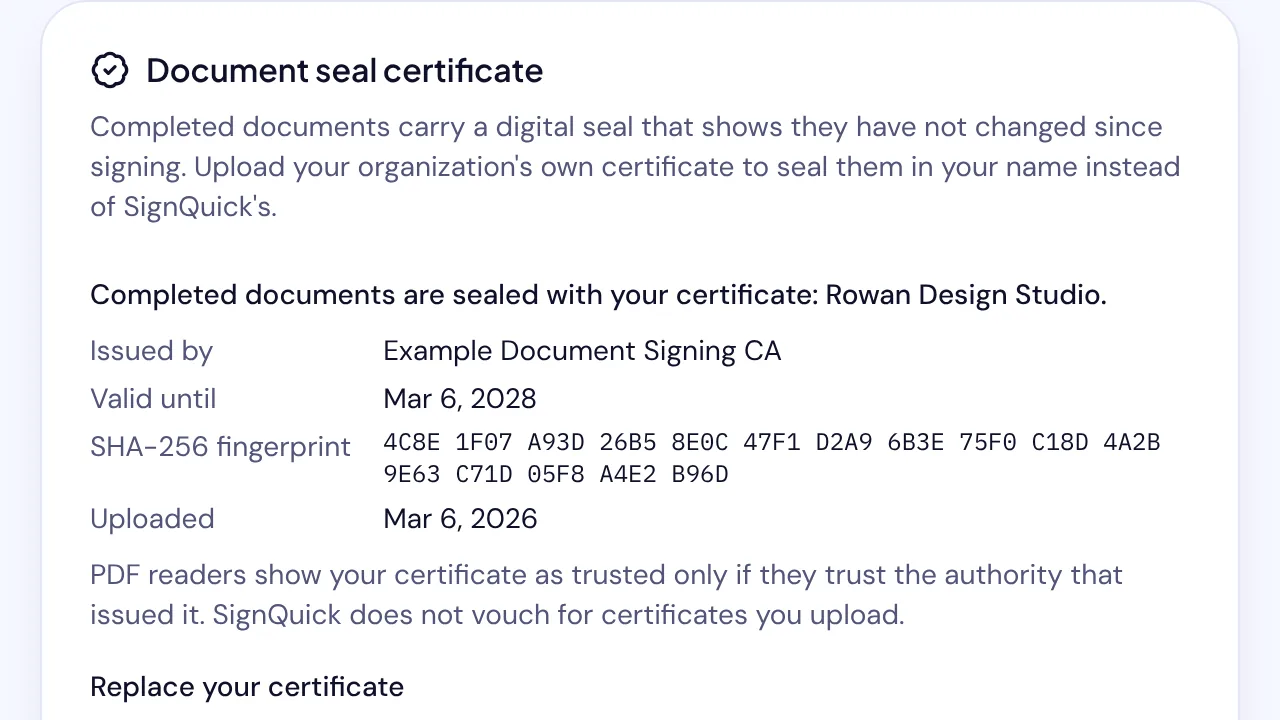
In SignQuick, the organization Owner uploads a certificate in Settings, Organization, Document seal certificate so completed documents are sealed in your name.
Who can use this feature?
- Who can do it
- Only the organization Owner can upload, replace or stop using a certificate. Other members see which certificate is in use.
- Before you start
- A certificate issued to your organization that is allowed to sign documents, with its RSA private key of 2048 to 8192 bits: a PKCS#12 file (.p12 or .pfx) and its password, or PEM files for the key and the certificate chain. Each file can be up to 64 KB.
Upload your certificate
Until you upload a certificate, SignQuick seals completed documents with its own. Yours seals every document completed after the upload. The key is encrypted before it is stored, and the password is never stored.
- Step 1: In the sidebar, select Settings, the gear icon next to your name.
- Step 2: Select Organization.
- Step 3: In Document seal certificate, choose PKCS#12 file (.p12 or .pfx) with its password or PEM files: the private key and the certificate chain.
- Step 4: For a PKCS#12 file, choose the Certificate file and enter the File password. For PEM files, choose the Private key (.pem or .key) and the Certificate chain (.pem, .crt or .cer).
- Step 5: Select Upload certificate.
Result: The card shows Completed documents are sealed with your certificate, with its issuer, expiry date, SHA-256 fingerprint and upload date.
Common questions
Why don't PDF readers show my certificate as trusted?
PDF readers trust your certificate only if they trust the authority that issued it. SignQuick doesn't vouch for certificates you upload, and its public verifier shows Not verified by SignQuick for them while still checking Integrity.
What happens when my certificate expires?
The card warns you 30 days before. After it expires, completed documents are sealed with SignQuick's certificate until you upload a new one.
Why is my file refused?
The card says why. A file exported with older encryption (RC2 or 3DES) must be exported again with AES. An encrypted PEM key must be uploaded unencrypted, or as a PKCS#12 file with its password.
Replace or stop using your certificate
- Step 1: In the sidebar, select Settings, then Organization.
- Step 2: In Document seal certificate, choose the new files and select Replace certificate, or select Stop using this certificate.
- Step 3: To stop, select Stop using it to confirm.
Result: Documents completed from then on are sealed with the new certificate, or with SignQuick's. The old certificate is listed under Previous certificates, and its key is deleted once documents already being finished no longer need it.